








How to Print a Worksheet in Excel with Page Setup and Print Area Options
A Printing Worksheet is an essential feature in spreadsheet software that allows users to produce a hard copy of their data in a clear and organized format. In computer science and office applications, understanding how to print a worksheet properly ensures that tables, charts, and reports appear correctly on paper. It involves adjusting page layout, margins, scaling, and print settings. Learning about printing worksheet options helps users present information professionally, avoid formatting errors, and manage documents efficiently in academic, business, and administrative tasks.
Definition and Meaning
The Printing Worksheet definition refers to the process of converting a spreadsheet worksheet into a printable format using print settings and layout configurations within spreadsheet software such as Microsoft Excel or Google Sheets.
- Worksheet - A single spreadsheet page containing rows and columns.
- Print Area - The specific range of cells selected for printing.
- Page Setup - Settings that control margins, orientation, size, and scaling.
- Print Preview - A feature that shows how the worksheet will appear when printed.
How It Works - Working Principle
The Printing Worksheet working process involves preparing spreadsheet data for physical output using printer and page configuration settings. The software converts digital content into a format suitable for printing based on user-defined preferences.
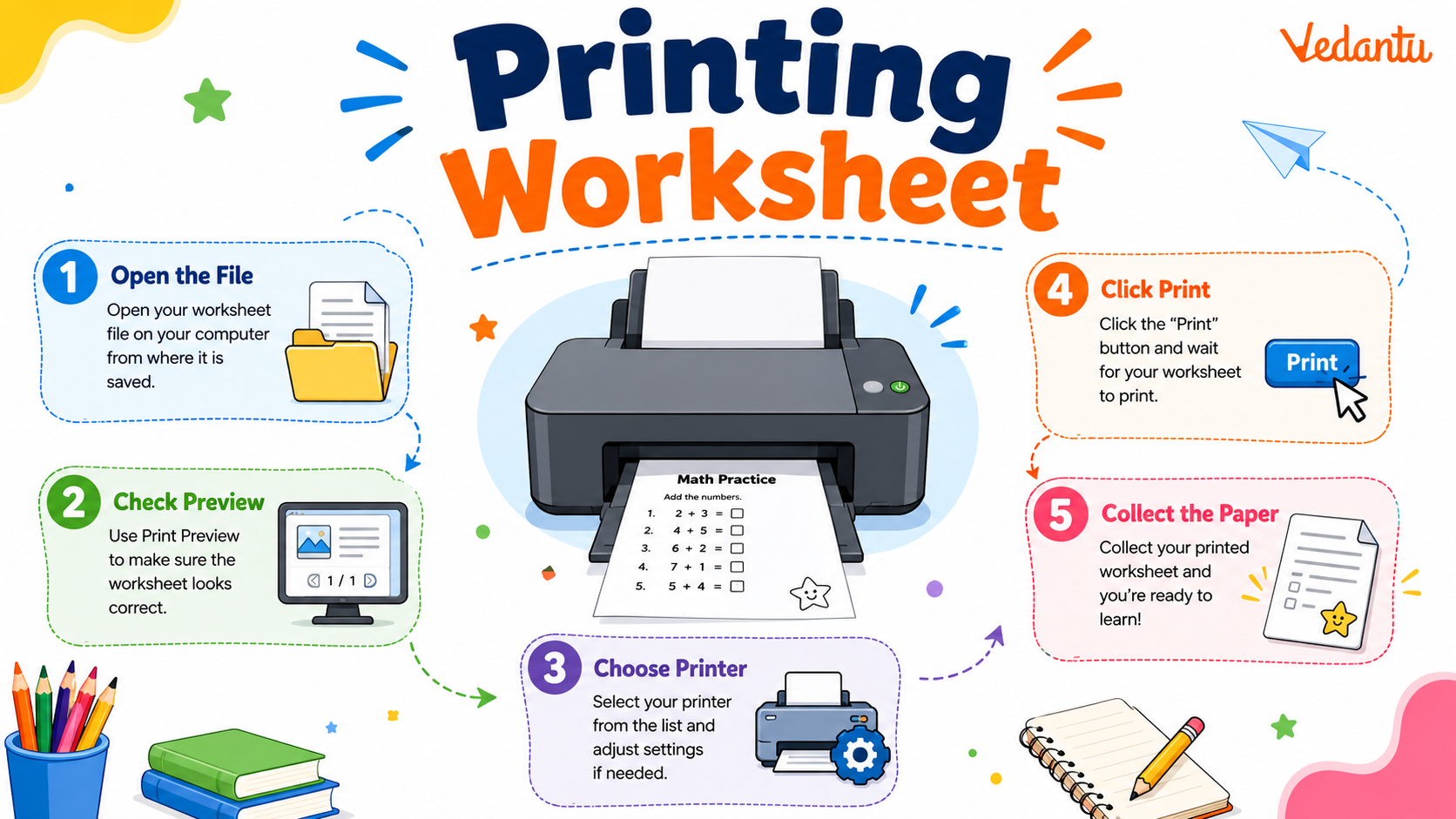
- Open the worksheet that needs to be printed.
- Select the required print area if only specific cells need to be printed.
- Adjust page layout settings such as orientation (portrait or landscape), margins, and paper size.
- Use Print Preview to check formatting and page breaks.
- Choose printer settings like number of copies and color options.
- Click the Print command to generate the hard copy.
Types and Classification
There are different Printing Worksheet types based on the printing scope and layout configuration.
Types of Printing Worksheet
| Type | Description | Example |
|---|---|---|
| Entire Worksheet Printing | Prints all data in the worksheet | Complete financial report |
| Selected Area Printing | Prints only selected cells | Specific data table |
| Chart Printing | Prints only charts or graphs | Sales performance graph |
Selecting the correct printing type ensures efficient use of paper and proper presentation of information.
Components and Structure
Printing a worksheet involves several important components that control the output format.
- Print Area - Defines which cells will be printed.
- Page Orientation - Portrait or landscape layout.
- Margins - Space between content and page edges.
- Headers and Footers - Text displayed at the top or bottom of printed pages.
- Scaling Options - Adjusts content to fit within a specific number of pages.
Features and Characteristics
- Allows printing of selected or complete data.
- Supports print preview for error checking.
- Provides page setup customization.
- Enables addition of headers and footers.
- Supports gridlines and row or column headings in print.
- Offers scaling and page fitting options.
Advantages
- Produces professional hard copies of spreadsheet data.
- Helps in documentation and record keeping.
- Improves readability during presentations and meetings.
- Allows customization for better formatting.
Disadvantages / Limitations
- Incorrect settings may cause formatting issues.
- Large worksheets may span multiple pages.
- Printing consumes paper and ink resources.
- Requires compatible printer hardware.
Applications and Use Cases
- Printing financial statements and invoices.
- Generating academic grade sheets.
- Creating attendance records.
- Printing charts and reports for business meetings.
- Maintaining physical records for audits.
Quick Facts About Printing Worksheet
| Category | Details |
|---|---|
| Type | Spreadsheet Feature |
| Used In | Excel, Google Sheets, LibreOffice Calc |
| Purpose | Generate Hard Copy of Worksheet |
| Key Features | Print Area, Page Setup, Preview, Scaling |
These quick facts summarize the essential aspects of printing worksheet in computer science applications.
Interesting Facts About Printing Worksheet
- You can print hidden gridlines for better clarity.
- Scaling options allow fitting an entire worksheet on one page.
- Headers and footers can automatically display page numbers.
- Print titles can repeat row or column headings on each page.
- Print preview reduces errors before final printing.
- You can save worksheets as PDF instead of printing physically.
Conclusion
Understanding Printing Worksheet in computer science is essential for effectively presenting spreadsheet data in printed form. It involves configuring layout settings, selecting print areas, and ensuring proper formatting through preview options. Mastering printing worksheet features helps students and professionals create clear, organized, and professional documents. This knowledge is valuable in academic, business, and administrative environments where accurate documentation and presentation are important.
FAQs on Printing Worksheet in Excel Step by Step Tutorial
1. What is a Printing Worksheet in computer applications?
Printing Worksheet refers to the process of converting a digital spreadsheet or worksheet into a physical paper copy using printer settings and page layout options.
- Commonly used in Microsoft Excel, Google Sheets, and other spreadsheet software
- Involves configuring page layout, margins, orientation, and print area
- Important for reports, data analysis summaries, and exam practical tasks
2. How does the Printing Worksheet feature work in Excel?
Printing a worksheet in Excel works by sending the formatted spreadsheet data to a printer using the Print command and configured print settings.
- Use File → Print or shortcut Ctrl + P
- Select printer, number of copies, and print range
- Adjust scaling, orientation, and margins before printing
3. What are the main page setup options available when printing a worksheet?
Page Setup options control how worksheet content appears on paper during printing.
- Orientation: Portrait or Landscape
- Margins: Top, bottom, left, right spacing
- Paper Size: A4, Letter, Legal
- Scaling: Fit sheet on one page
4. What is Print Area in a worksheet?
Print Area is a selected range of cells that defines which part of the worksheet will be printed.
- Set using Page Layout → Set Print Area
- Prevents unnecessary blank or extra data from printing
- Useful for large datasets and reports
5. What is the difference between Print Preview and Print in a worksheet?
Print Preview shows how the worksheet will look before printing, while Print sends the document directly to the printer.
- Preview helps detect layout errors
- Reduces paper and ink wastage
- Essential for exam and office documentation tasks
6. How can you print selected cells instead of the entire worksheet?
Selected cells can be printed by highlighting the required range and choosing the print selection option.
- Select the desired cells
- Go to File → Print
- Choose Print Selection under settings
7. What are headers and footers in Printing Worksheet?
Headers and Footers are text elements printed at the top or bottom of each worksheet page.
- Can include page numbers, date, file name
- Added through Insert → Header & Footer
- Commonly used in reports and academic submissions
8. What are the advantages of properly formatting a worksheet before printing?
Proper worksheet formatting ensures clarity, readability, and professional presentation in printed documents.
- Improves data visualization
- Prevents data cut-off across pages
- Enhances exam and business report quality
9. What common problems occur while printing a worksheet?
Common printing worksheet issues include incorrect scaling, missing data, and improper page breaks.
- Data spilling onto multiple pages
- Margins cutting off content
- Printer driver or connectivity errors
10. Why is Printing Worksheet important for students and exam preparation?
Printing Worksheet skills are important for practical exams, assignments, and professional documentation tasks.
- Frequently asked in computer practical exams
- Required in office automation and data management tasks
- Useful for interview preparation in administrative and IT roles