








How to Open MS Word Using Start Menu Desktop Shortcut and Run Command
Microsoft Word is one of the most widely used word processing applications in the world. Understanding the Process To Start MS Word is an essential computer skill for students, teachers, and professionals. It allows users to create, edit, format, save, and print documents efficiently. Learning how to open MS Word correctly is the first step toward working with digital documents such as letters, reports, assignments, and resumes. In computer science education, knowing the basic operations of software like MS Word builds a strong foundation in practical computer usage.
Definition and Meaning
Process To Start MS Word refers to the step-by-step method used to open and begin working with Microsoft Word on a computer system.
- MS Word - A word processing software developed by Microsoft.
- Application Software - Programs designed to perform specific tasks for users.
- Word Processing - Creating, editing, formatting, and printing text documents.
- Document - A file created in MS Word containing text, images, or other content.
In simple terms, starting MS Word means opening the program so that you can begin creating or editing a document.
How It Works / Working Principle
The Process To Start MS Word working involves launching the Microsoft Word application from the operating system. Once opened, the software loads its interface, including the ribbon, toolbar, and document workspace.
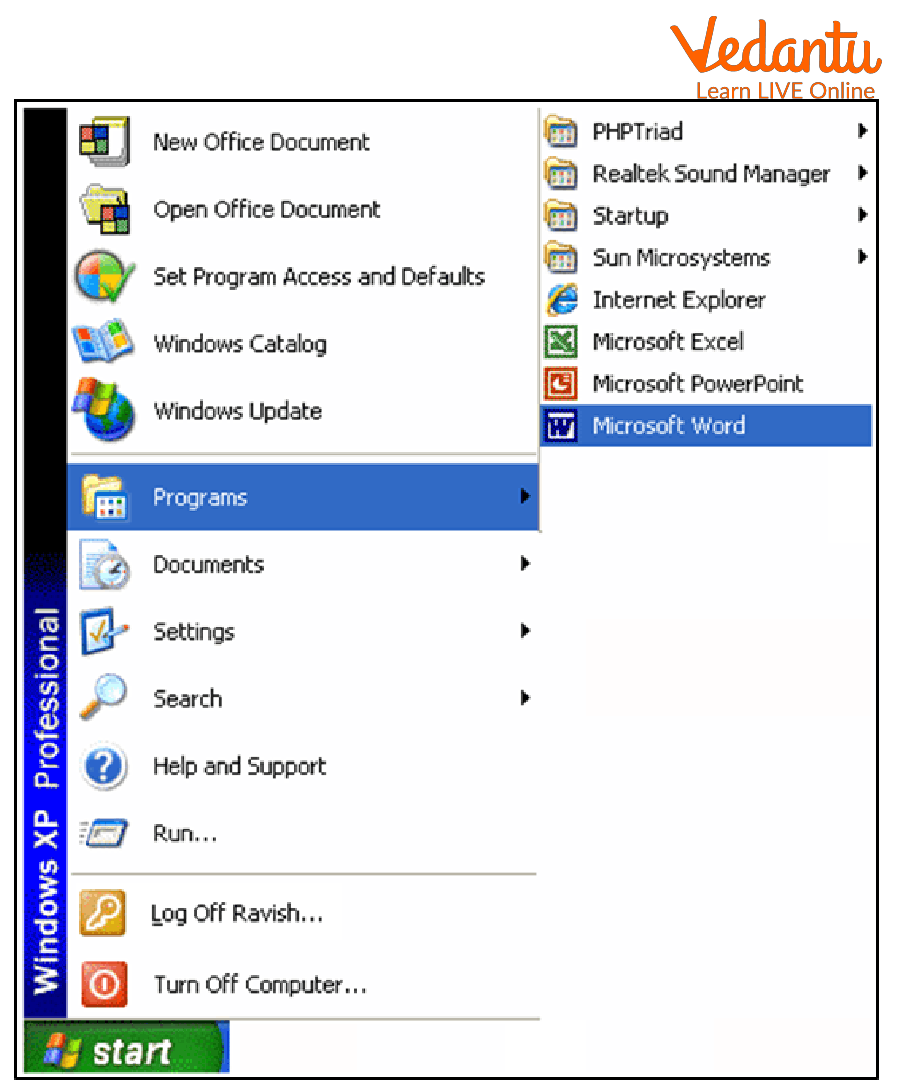
Follow these steps to start MS Word in Windows:
- Click on the Start button on the taskbar.
- Select All Programs or All Apps.
- Find and click on Microsoft Office.
- Click on Microsoft Word.
- The MS Word window will open on the screen.
Alternatively, you can type Word in the search bar and press Enter to open it quickly.
How to Start MS Word:
Creating, Opening, Saving and Printing Documents
After starting MS Word, users can perform essential tasks such as creating, opening, saving, and printing documents.
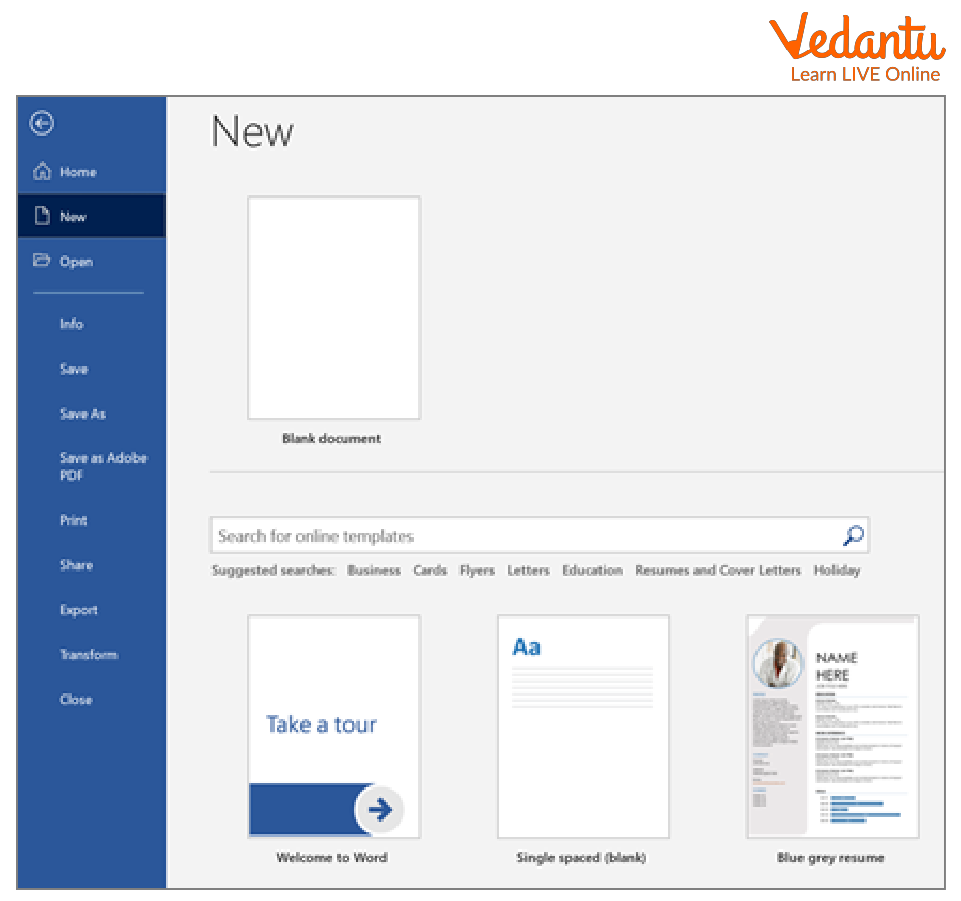
How to Create a New Document
- Click on File.
- Select New.
- Choose Blank Document.
- Start typing your content.
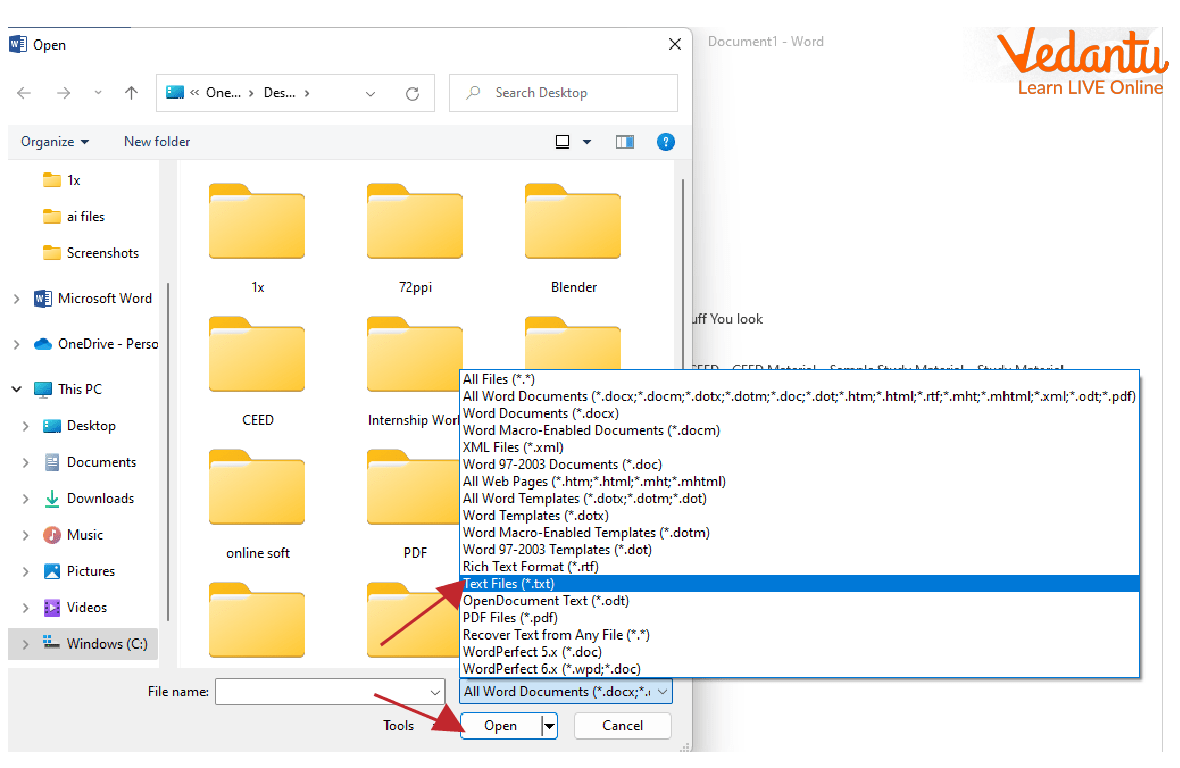
How to Open an Existing Document
- Click on File.
- Select Open.
- Browse and select the desired file.
- Click Open.
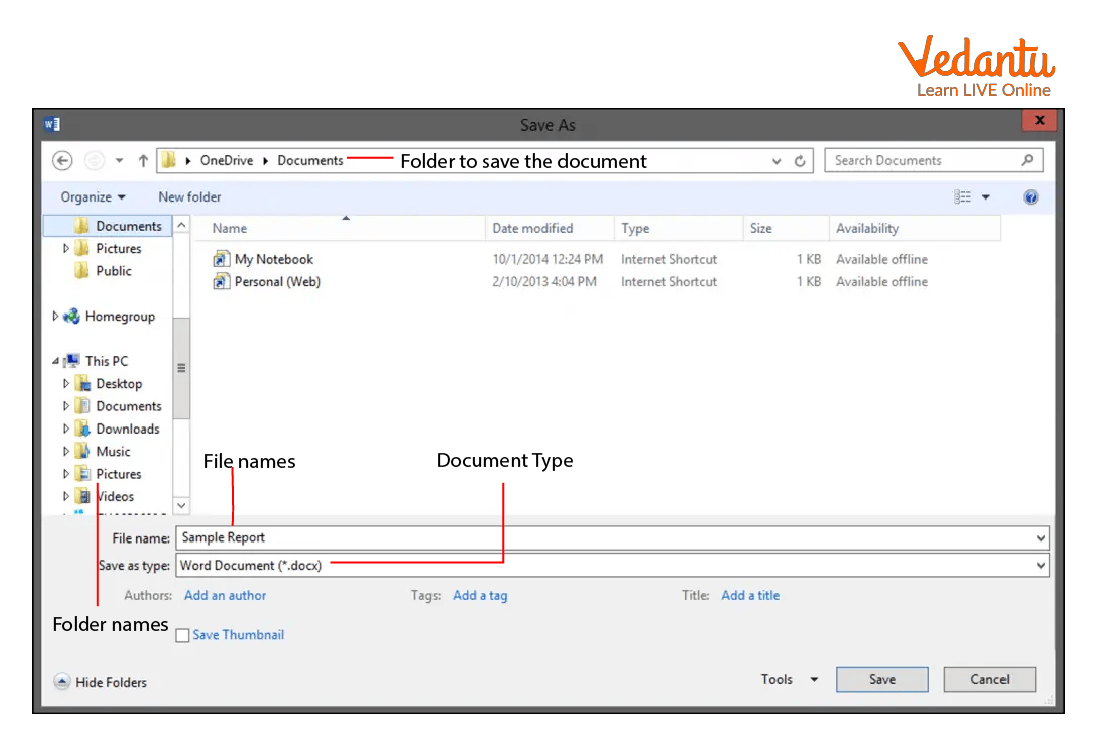
How to Save a Document
- Click on File.
- Select Save or Save As.
- Choose the location.
- Enter the file name and click Save.
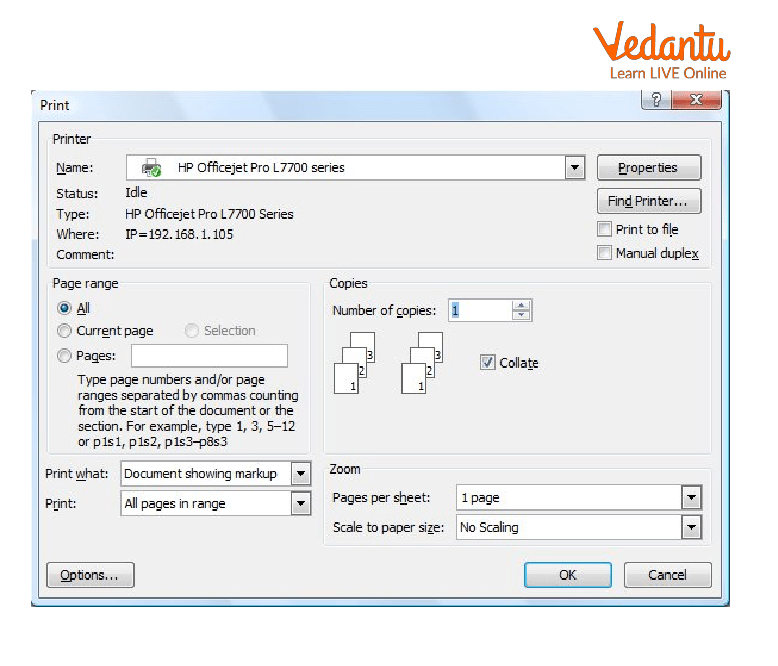
How to Print a Document
- Click on File.
- Select Print.
- Choose printer settings.
- Click Print.
Features and Characteristics
- User friendly graphical interface.
- Ribbon menu for easy access to tools.
- Supports text formatting, images, tables, and charts.
- Spell check and grammar check features.
- Supports multiple file formats such as .doc and .docx.
Advantages
- Easy to start and use for beginners.
- Widely used in schools and offices.
- Provides professional document formatting tools.
- Allows saving and sharing documents digitally.
Disadvantages / Limitations
- Requires installation and system storage.
- Licensed software may require purchase or subscription.
- Large documents may slow down on low performance systems.
Applications and Use Cases
- Creating school assignments and projects.
- Preparing office reports and letters.
- Designing resumes and professional documents.
- Printing official and personal documents.
Quick Facts About MS Word
| Feature | Details | Category |
|---|---|---|
| Developed By | Microsoft | Software Company |
| File Extension | .doc, .docx | Document Format |
| Used For | Word Processing | Application Software |
MS Word is part of the Microsoft Office suite and is available for Windows, macOS, and online platforms.
Interesting Facts About Process To Start MS Word
- MS Word was first released in 1983.
- It was originally called Multi Tool Word.
- You can start MS Word using shortcut keys like Windows + S and typing Word.
- MS Word supports cloud storage through OneDrive.
- It includes built in templates for letters, resumes, and reports.
- Auto save feature helps prevent data loss.
Conclusion
Understanding the Process To Start MS Word is a fundamental computer science skill that enables users to create and manage digital documents efficiently. From launching the application to creating, saving, and printing documents, each step plays an important role in daily computer operations. Mastering these basics helps students and professionals work confidently with word processing software and improves overall digital literacy.
FAQs on Process To Start MS Word in Windows for Beginners
1. What is the process to start MS Word in Windows?
The process to start MS Word involves launching the application from the Windows Operating System using built-in shortcuts or the Start menu.
- Click on Start Menu and search for Microsoft Word.
- Select the Word application to open the word processing software.
2. How can you start MS Word using the Run command?
You can start MS Word quickly by using the Run command in Windows.
- Press Windows + R to open the Run dialog box.
- Type winword and press Enter to launch Microsoft Word.
3. How do you open MS Word from the desktop shortcut?
MS Word can be opened directly using a desktop shortcut icon if it is available on your system.
- Locate the Microsoft Word icon on the desktop.
- Double-click the icon to start the application.
4. How can you start MS Word from the Start menu in Windows 10 or 11?
In Windows 10 or Windows 11, MS Word can be accessed from the Start menu under installed programs.
- Click on Start and scroll to Microsoft Office or search for Word.
- Click on Microsoft Word to open it.
5. What is the command name used to start MS Word?
The executable command used to start Microsoft Word is winword.exe.
- Used in Command Prompt or Run dialog.
- Located in the Microsoft Office installation directory.
6. Can MS Word be opened using Command Prompt?
Yes, MS Word can be launched using the Command Prompt in Windows.
- Open cmd from the Start menu.
- Type start winword and press Enter.
7. What happens when MS Word starts?
When MS Word starts, it loads the graphical user interface and displays document templates.
- Shows options like Blank Document and templates.
- Loads components such as Ribbon, Toolbar, and Workspace.
8. What are the system requirements to start MS Word?
To start MS Word, the system must meet basic hardware and software requirements of Microsoft Office.
- A supported Windows or macOS operating system.
- Minimum RAM, processor speed, and storage as specified by the Office version.
9. How is starting MS Word different from opening a Word document?
Starting MS Word launches the application, while opening a document loads a specific .doc or .docx file inside the software.
- Starting Word opens the program interface.
- Opening a file loads an existing document for editing.
10. Why is knowing the process to start MS Word important for exams and interviews?
Understanding the process to start MS Word is important for computer fundamentals exams and basic IT skill assessments.
- Common question in school, competitive exams, and interviews.
- Tests knowledge of operating system navigation and application launching.