








How To Set Margins And Align Text In MS Word With Examples
Setting margins and aligning text are essential formatting skills in word processing software such as Microsoft Word. These features help users organize content neatly, improve readability, and create professional looking documents. In computer science and digital documentation, understanding how margins and alignment work is important for preparing reports, assignments, letters, and official documents. Proper formatting ensures that text appears structured, balanced, and visually appealing on both screen and printed pages.
Definition and Meaning
Setting Margins And Aligning Text in computer science refers to adjusting the blank space around a document and positioning text within a page. These formatting options are commonly used in word processing applications.
- Margins - The empty space between the text and the edges of the page.
- Alignment - The positioning of text relative to the page margins.
- Paragraph Formatting - Formatting options that control text layout within paragraphs.
- Justification - Aligning text evenly along both left and right margins.
How It Works / Working Principle
The working of setting margins and aligning text involves adjusting layout settings within a word processor. These settings determine how text appears on the page and how much space surrounds it.
- Open the document in a word processing application.
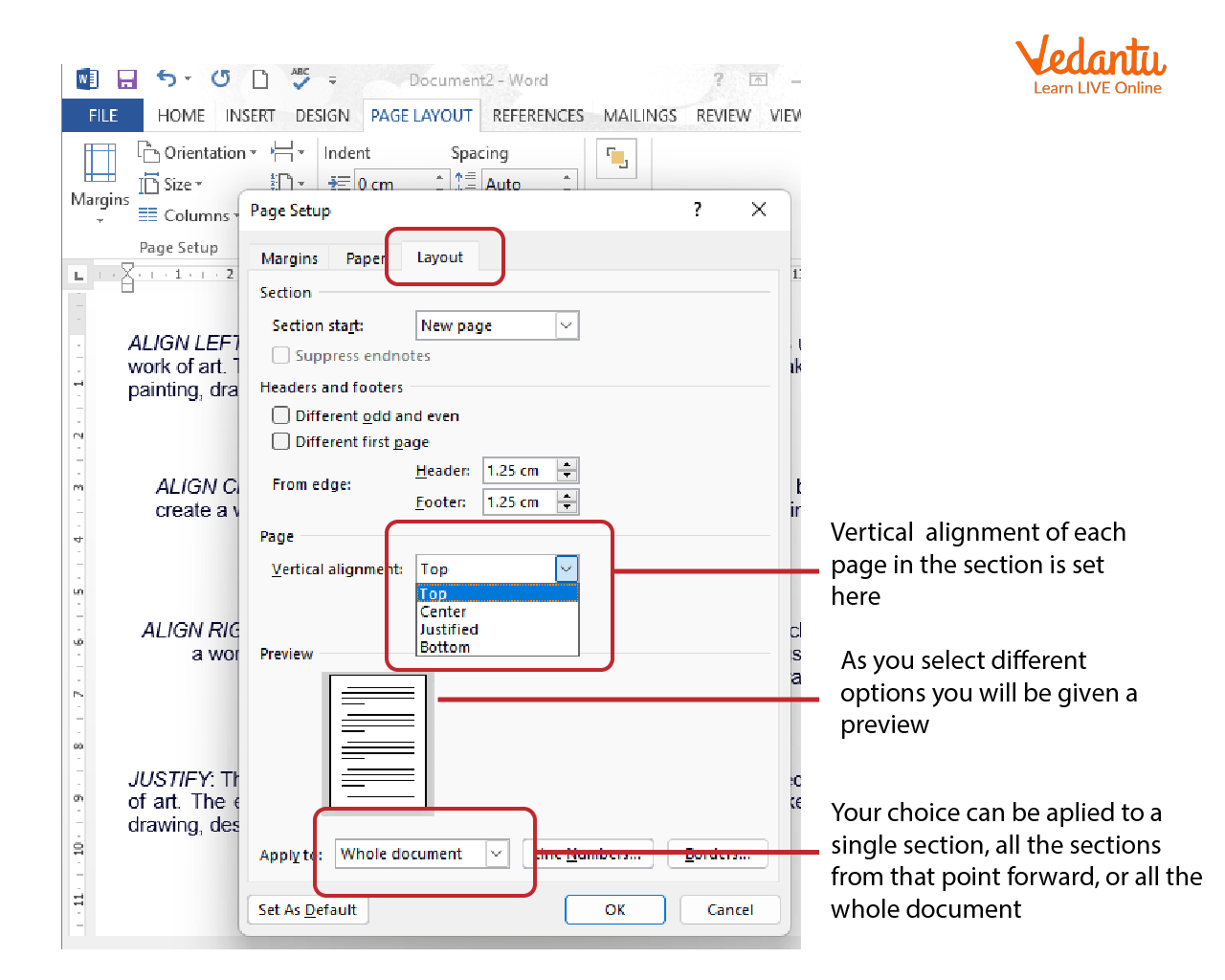
- Navigate to the Layout or Page Layout tab to modify margins.
- Select predefined margin options or choose Custom Margins.
- To align text, select the paragraph or text.
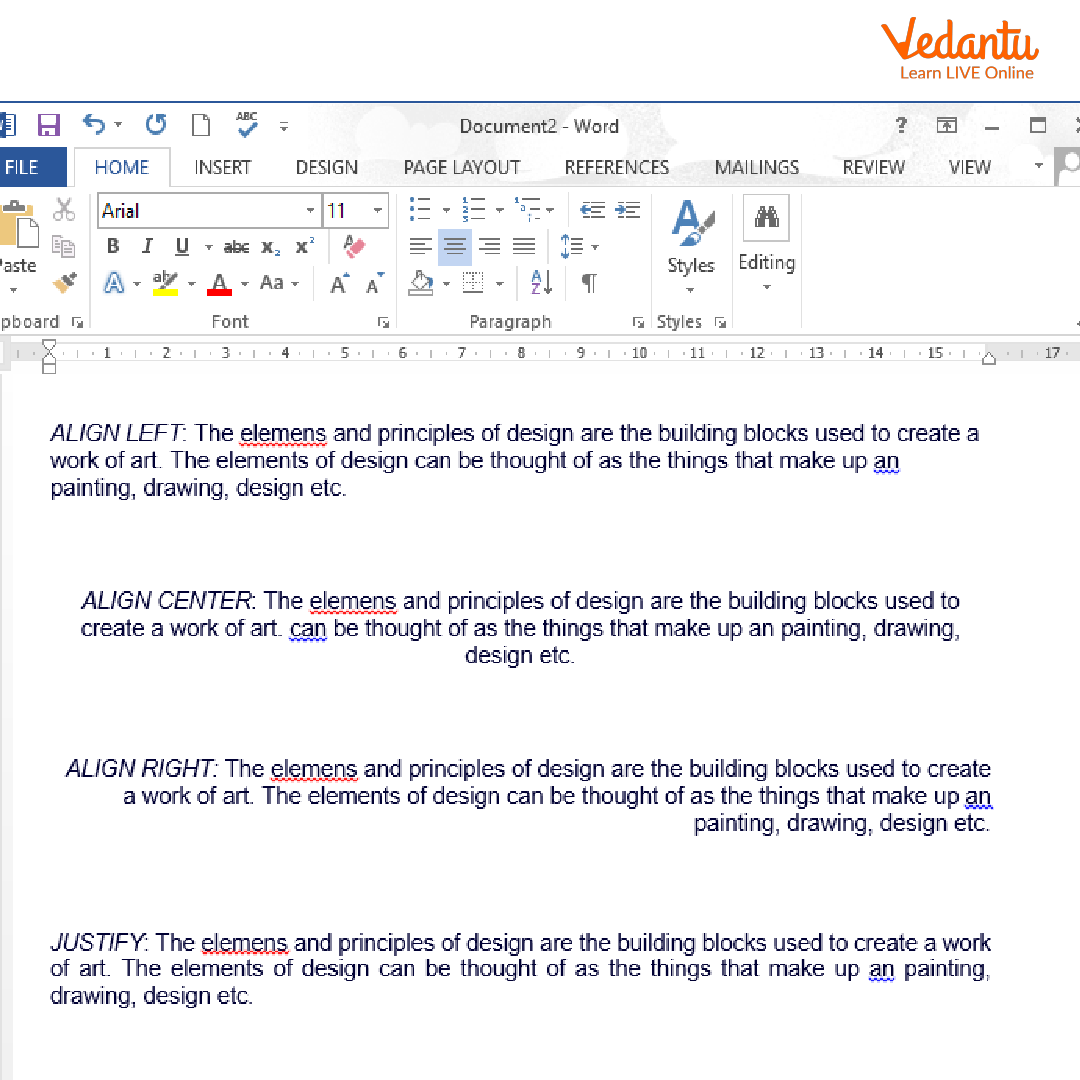
- Click the desired alignment option such as Left, Center, Right, or Justify.
- The software adjusts spacing and layout automatically.
These formatting features are processed by the word processor’s layout engine, which calculates spacing and ensures consistent presentation across pages.
Microsoft Word Interface Overview
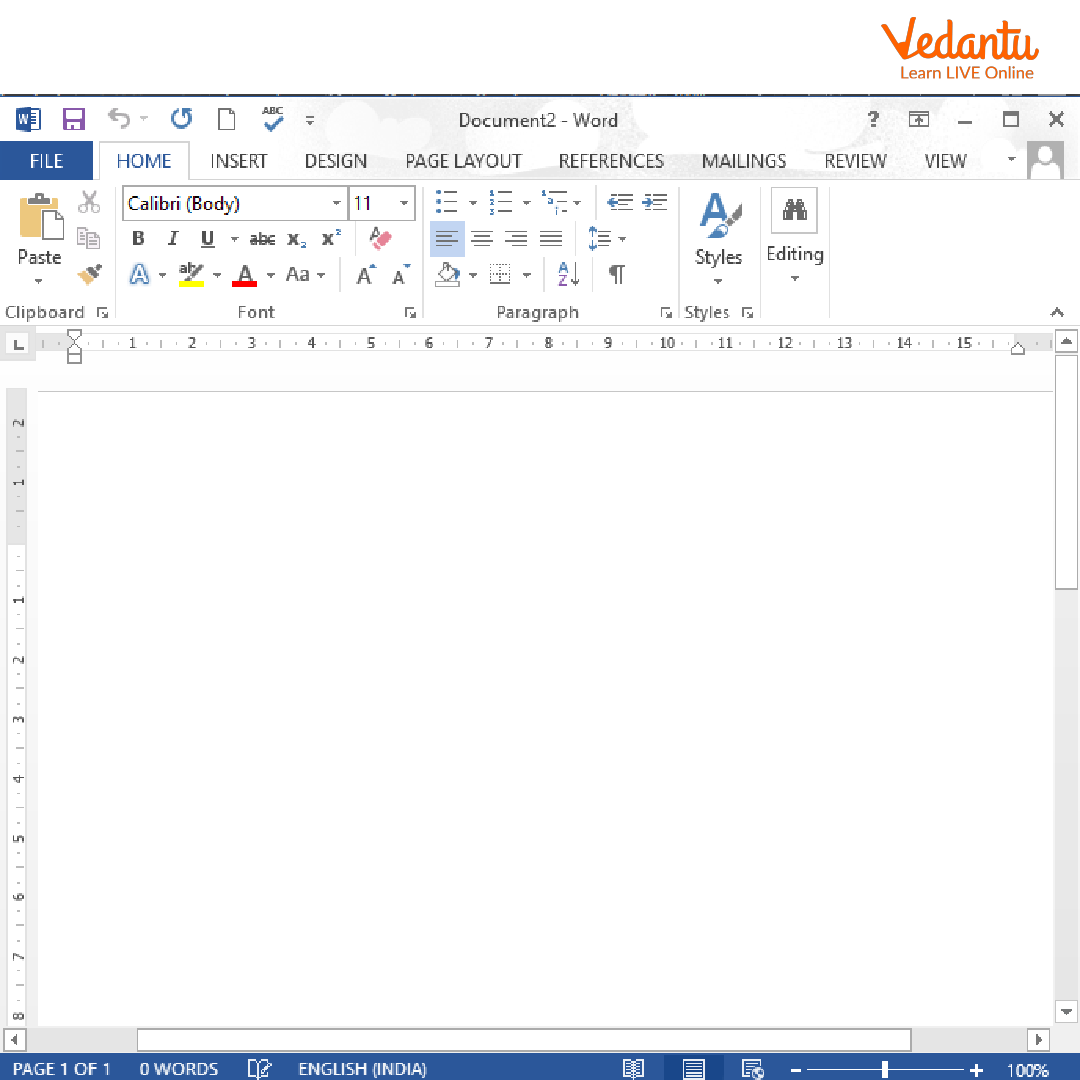
The Microsoft Word interface provides easy access to margin and alignment settings through the ribbon menu.
Types and Classification
Types of Margins
- Top Margin - Space at the top of the page.
- Bottom Margin - Space at the bottom of the page.
- Left Margin - Space on the left side of the page.
- Right Margin - Space on the right side of the page.
- Custom Margins - User defined margin settings.
Types of Text Alignment
- Left Alignment - Text aligned with the left margin.
- Right Alignment - Text aligned with the right margin.
- Center Alignment - Text centered between margins.
- Justified Alignment - Text aligned evenly on both sides.
Setting Margins in Microsoft Word
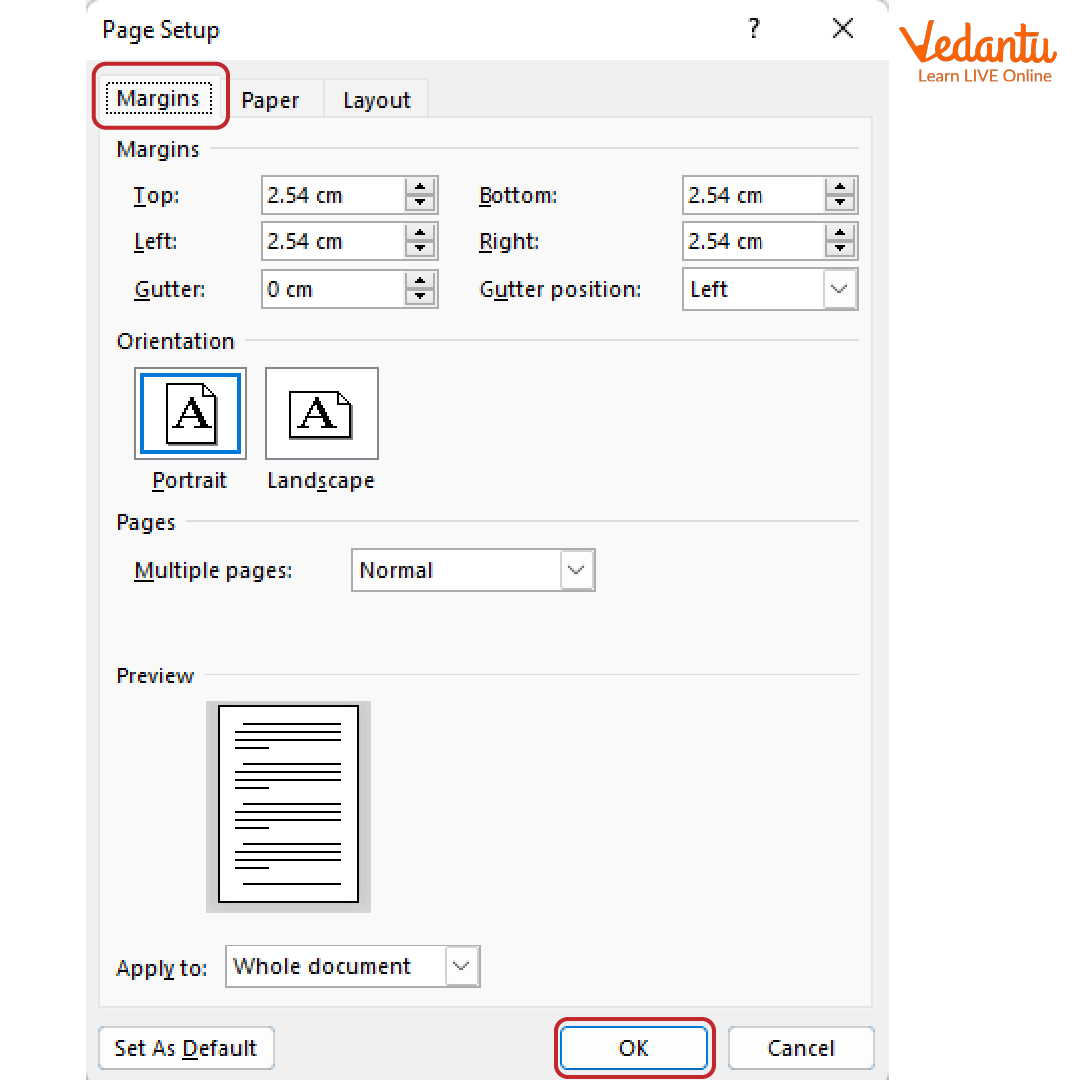
Margins can be set using predefined templates such as Normal, Narrow, Wide, or by specifying exact measurements in inches or centimeters.
Alternative Methods to Align Text
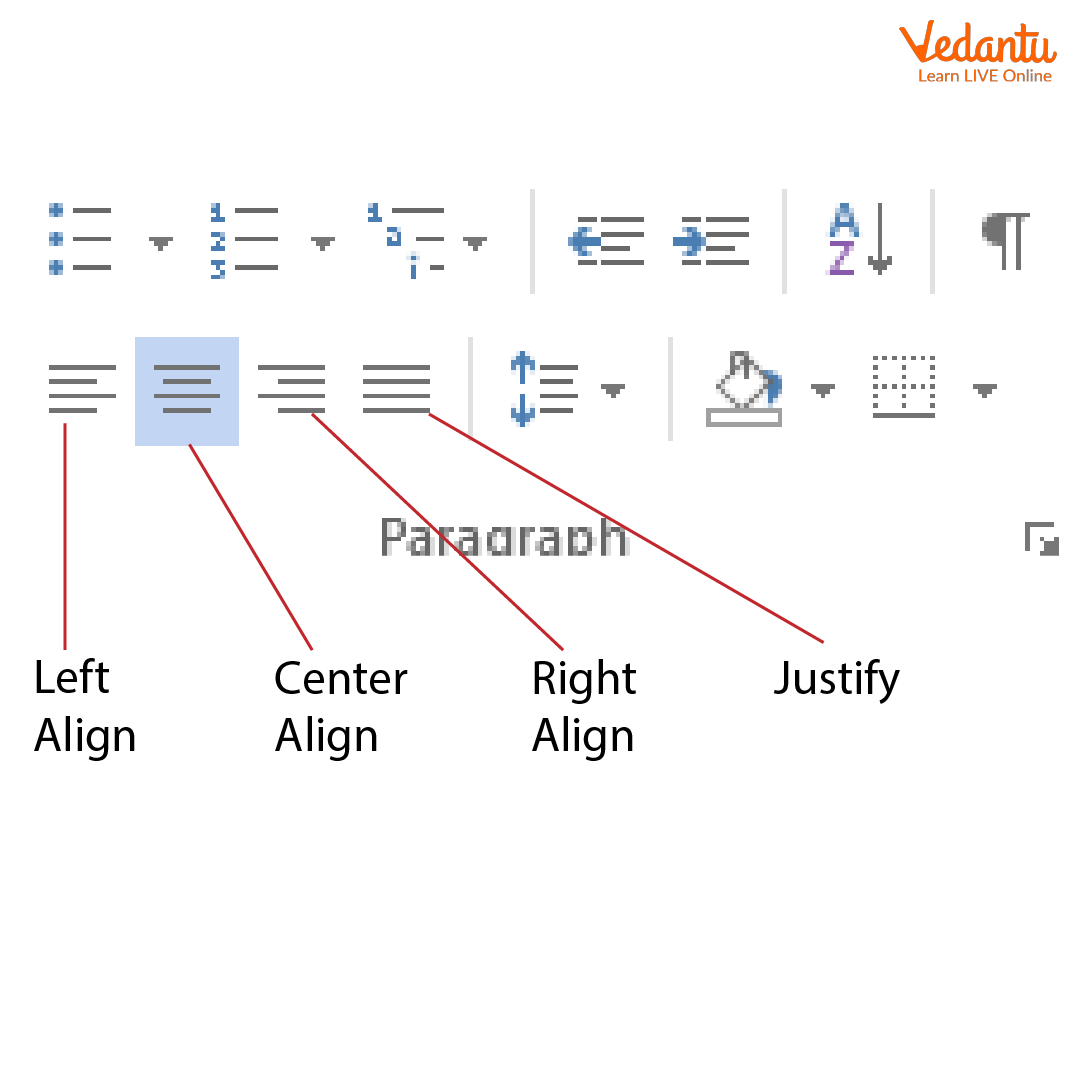
Apart from using alignment buttons, text can also be aligned using keyboard shortcuts such as:
- Ctrl + L - Left align
- Ctrl + R - Right align
- Ctrl + E - Center align
- Ctrl + J - Justify text
Features and Characteristics
- Customizable margin measurements.
- Multiple alignment options.
- Predefined layout templates.
- Keyboard shortcut support.
- Real time preview of formatting changes.
Advantages
- Improves document readability.
- Enhances professional appearance.
- Ensures proper printing layout.
- Supports academic and official formatting standards.
Disadvantages / Limitations
- Incorrect margin settings may cause content overflow during printing.
- Overuse of justified alignment may create uneven spacing between words.
- Different software versions may have slightly varied layout options.
Applications and Use Cases
- Preparing school and college assignments.
- Creating business reports and letters.
- Designing resumes and official documents.
- Formatting research papers.
- Desktop publishing and document design.
Quick Facts About Setting Margins And Aligning Text
| Category | Details |
|---|---|
| Type | Document Formatting Feature |
| Used In | Word Processing Software |
| Main Functions | Adjust Margins and Align Text |
| Common Software | Microsoft Word, Google Docs |
These features are fundamental to document preparation and are widely used across academic, professional, and personal applications.
Interesting Facts About Setting Margins And Aligning Text
- Default margin settings are usually 1 inch on all sides.
- Justified text is commonly used in newspapers and books.
- Alignment options can affect document readability.
- Margins help prevent text from being cut off during printing.
- Keyboard shortcuts make formatting faster and more efficient.
- Custom margins are often required in official document standards.
Conclusion
Setting margins and aligning text are fundamental formatting skills in computer science and digital documentation. These features ensure that documents are structured, readable, and professionally presented. By understanding their working, types, and applications, users can create well organized documents for academic, personal, and business purposes. Mastering these tools enhances efficiency and improves the overall quality of digital content.
FAQs on Setting Margins And Aligning Text In Word And Documents
1. What is setting margins and aligning text in Computer Science?
Setting margins and aligning text refer to formatting techniques used in word processing, web development, and UI design to control spacing and text positioning within a document or webpage.
- Margins define the space between content and page or container edges.
- Text alignment controls how text is positioned such as left, right, center, or justified.
- Commonly used in HTML, CSS, MS Word, and document editors.
2. Why are margins important in web development and document formatting?
Margins are important because they improve readability, layout structure, and visual design in software applications and web pages.
- Create proper spacing between elements in UI/UX design.
- Prevent content from touching screen edges.
- Enhance user experience in web development and responsive design.
3. How do you set margins in CSS?
In CSS, margins are set using the margin property to control spacing outside an element’s border.
- Example syntax: margin: 10px;
- Individual sides: margin-top, margin-right, margin-bottom, margin-left
- Used in front-end development for layout control.
4. What are the different types of text alignment?
Text alignment defines how text is positioned horizontally within a container or page.
- Left alignment – Text aligned to the left margin.
- Right alignment – Text aligned to the right margin.
- Center alignment – Text centered horizontally.
- Justified alignment – Text aligned evenly on both sides.
5. How do you align text using CSS?
Text alignment in CSS is controlled using the text-align property.
- Example: text-align: center;
- Values include left, right, center, and justify.
- Widely used in HTML web pages and responsive layouts.
6. What is the difference between margin and padding?
The main difference is that margin creates space outside an element, while padding creates space inside an element’s border.
- Margin affects spacing between elements.
- Padding affects spacing between content and border.
- Both are key parts of the CSS box model.
7. How are margins and alignment used in word processing software?
In word processors like MS Word or Google Docs, margins and alignment control document layout and print formatting.
- Margins are set through Page Layout or Page Setup options.
- Alignment options are available in the Home toolbar.
- Important for assignments, reports, and exam documents.
8. What are the advantages of proper margin setting and text alignment?
Proper margin setting and text alignment improve readability, professional appearance, and structured design.
- Enhances user interface clarity.
- Improves content organization in web and software applications.
- Essential for print formatting and documentation standards.
9. Can margins be set automatically in responsive web design?
Yes, margins can be managed automatically in responsive design using flexible units and layout techniques.
- Use auto value like margin: auto; for centering elements.
- Apply percentage (%) or viewport units for flexible layouts.
- Often combined with Flexbox or CSS Grid.
10. Why is setting margins and aligning text important for exams and interviews?
Understanding margins and text alignment is important for exams and interviews because they are fundamental concepts in web development, UI design, and document formatting.
- Frequently asked in HTML and CSS interview questions.
- Important for practical coding tests and lab exams.
- Forms the foundation of front-end development skills.