








How to start and control a slide show in PowerPoint with shortcuts and settings
A slide show is a powerful feature in presentation software that allows users to display slides in a full-screen sequential format. It is widely used in education, business meetings, seminars, and training sessions to communicate ideas visually and effectively. Understanding how to run a slide show in computer science helps students and professionals present information clearly using text, images, animations, and transitions. A well-executed slide show enhances audience engagement and ensures smooth delivery of content.
Definition and Meaning
Run A Slide Show refers to the process of displaying a presentation in full-screen mode, where slides appear one after another in a predefined order.
- Slide - A single page of a presentation containing text, images, charts, or multimedia.
- Slide Show Mode - The full-screen viewing mode used to present slides to an audience.
- Transition - The visual effect that occurs when moving from one slide to another.
- Animation - Effects applied to objects within a slide.
How It Works / Working Principle
The Run A Slide Show working process involves preparing slides, selecting viewing options, and presenting them in sequence. The software manages slide transitions, animations, and navigation automatically or manually based on user settings.
- Create and arrange slides using presentation software.
- Apply themes, transitions, and animations.
- Click on the Slide Show tab or press the shortcut key such as F5.
- Slides appear in full-screen mode.
- Navigate using arrow keys, mouse clicks, or automatic timing.
Example Images:
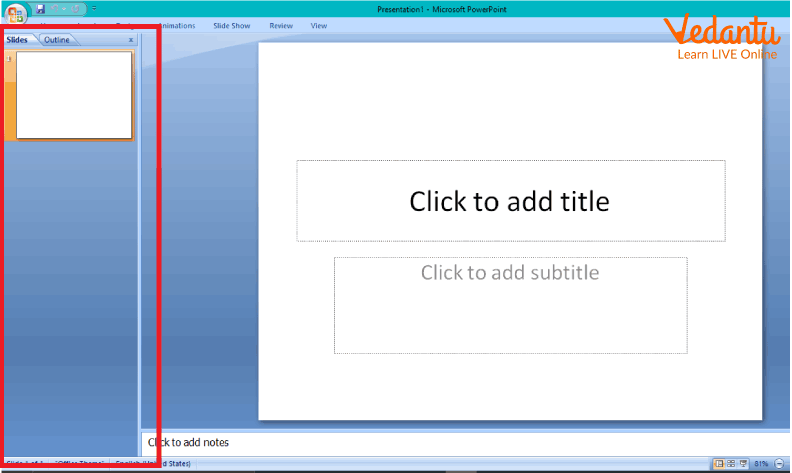
A single slide used in a slide show presentation.
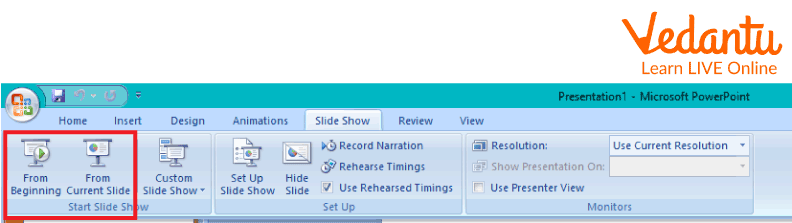
Slide show buttons used to start the presentation.
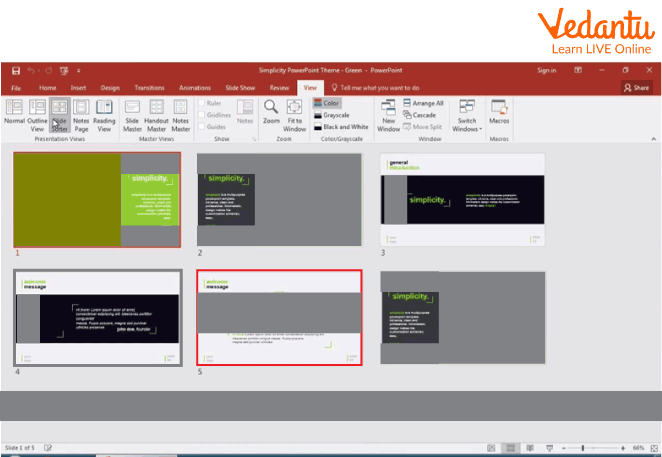
Slide sorter view to arrange slides before running the slide show.
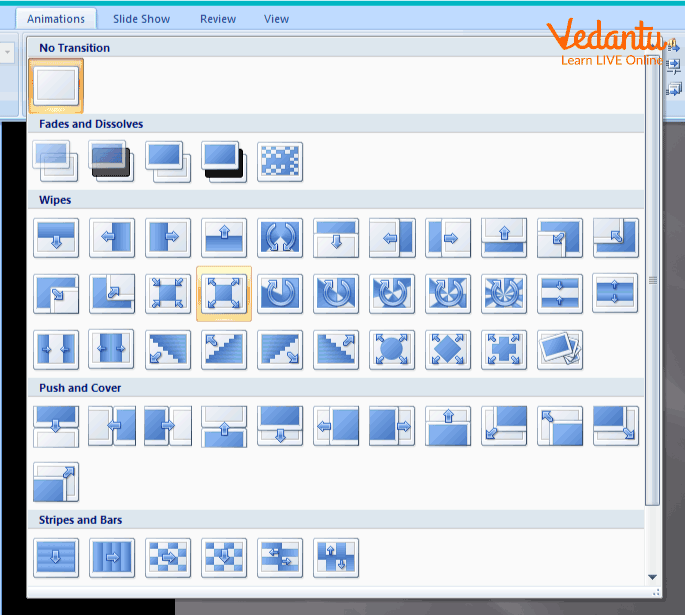
Transition effects applied between slides.
Types and Classification
Run A Slide Show types are generally classified based on how slides are presented.
- Manual Slide Show - Slides change when the presenter clicks or presses a key.
- Automatic Slide Show - Slides advance automatically based on preset timing.
- Presenter View Mode - Allows the presenter to see notes and upcoming slides while the audience sees the main slide.
- Custom Slide Show - Selected slides are displayed in a specific order for a particular audience.
Features and Characteristics
- Full-screen presentation mode.
- Supports text, images, audio, video, and charts.
- Customizable transitions and animations.
- Keyboard and mouse navigation support.
- Option to loop continuously.
- Presenter notes support for guidance.
Advantages
- Enhances visual communication.
- Keeps audience engaged with multimedia content.
- Easy to organize and present structured information.
- Allows automatic timing for self-running presentations.
- Improves clarity and professionalism.
Disadvantages / Limitations
- Overuse of animations can distract the audience.
- Technical issues such as projector or software failure.
- Requires preparation time.
- May become monotonous without proper design.
Applications and Use Cases
- Classroom teaching and online learning.
- Business meetings and corporate presentations.
- Project demonstrations.
- Marketing and product launches.
- Training sessions and workshops.
Quick Facts About Run A Slide Show
| Category | Details |
|---|---|
| Type | Presentation Feature |
| Common Software | Microsoft PowerPoint, Google Slides, LibreOffice Impress |
| Shortcut Key | F5 to start, Esc to exit |
| Used For | Displaying presentations in full-screen mode |
| Key Features | Transitions, animations, multimedia support |
These quick facts highlight the essential details of running a slide show in presentation software.
Interesting Facts About Run A Slide Show
- The first presentation software was developed in the 1980s.
- Slide shows can include embedded videos and live web content.
- Presenter view helps speakers see notes without showing them to the audience.
- Custom slide shows allow different versions of the same presentation.
- Automatic slide shows are often used in exhibitions and kiosks.
- Transitions can be timed down to milliseconds.
Conclusion
Understanding how to run a slide show is an essential skill in computer science and digital communication. It enables users to present information effectively using visual and multimedia tools. By learning the working process, types, features, and applications, students can create professional presentations for academic and professional purposes. Mastering slide show functionality improves communication skills and enhances the overall impact of presentations.
FAQs on Run A Slide Show in PowerPoint Step by Step
1. What does "Run a Slide Show" mean in PowerPoint?
Run a Slide Show means starting the presentation mode in Microsoft PowerPoint where slides are displayed full screen for viewers.
- Displays slides in full-screen mode
- Used for presentations in classrooms, meetings, and seminars
- Hides editing tools and shows only slide content
- Supports animations, transitions, audio, and video playback
2. How do you run a Slide Show in Microsoft PowerPoint?
You can run a Slide Show in PowerPoint using keyboard shortcuts or menu options.
- Press F5 to start from the beginning
- Press Shift + F5 to start from the current slide
- Click the Slide Show tab and select From Beginning or From Current Slide
- Click the Slide Show icon at the bottom-right of the window
3. What are the different Slide Show view options in PowerPoint?
PowerPoint provides different Slide Show view options to control how presentations are displayed.
- From Beginning – Starts presentation from the first slide
- From Current Slide – Starts from the selected slide
- Custom Slide Show – Runs selected slides only
- Presenter View – Shows notes and controls to the presenter
4. What is Presenter View in a Slide Show?
Presenter View is a PowerPoint feature that allows the speaker to see notes and slide controls while the audience sees only the presentation.
- Displays speaker notes
- Shows next slide preview
- Includes timer and navigation tools
- Requires dual monitor or projector setup
5. How can you navigate between slides during a Slide Show?
During a Slide Show, you can move between slides using keyboard, mouse, or on-screen controls.
- Press Right Arrow or Spacebar for next slide
- Press Left Arrow for previous slide
- Click the mouse to advance slides
- Type slide number and press Enter to jump to a specific slide
6. What are Slide Transitions and Animations in a Slide Show?
Slide Transitions control how one slide changes to another, while Animations control how objects appear within a slide.
- Transitions apply between slides
- Animations apply to text, images, and shapes
- Can be timed automatically or triggered by click
- Enhance visual presentation and engagement
7. How do you set up an automatic Slide Show?
An automatic Slide Show runs slides automatically based on preset timing without manual input.
- Go to Transitions tab
- Set After timing for each slide
- Use Rehearse Timings option in Slide Show tab
- Enable Use Timings before running the presentation
8. What are the advantages of running a Slide Show in presentations?
Running a Slide Show improves communication by presenting information visually and interactively.
- Displays content in full-screen mode
- Supports multimedia elements like audio and video
- Makes learning and teaching more engaging
- Helps in professional business and academic presentations
9. How do you end or exit a Slide Show in PowerPoint?
You can easily exit a Slide Show using keyboard or on-screen controls.
- Press the Esc key to end the presentation
- Right-click and select End Show
- Use on-screen navigation menu options
10. Why is running a Slide Show important for exams and interviews?
Understanding how to Run a Slide Show is important for practical exams, computer fundamentals tests, and job interviews.
- Common topic in school and college computer syllabus
- Frequently asked in basic computer skill tests
- Required for academic and project presentations
- Demonstrates proficiency in Microsoft Office tools