








What are the components of the Word Screen and how do they work
A Word Screen refers to the main working window of Microsoft Word where users create, edit, and format documents. It is one of the most important components in basic computer education because it helps users understand how word processing software functions. The Word screen in computer science includes various tools, menus, and panels that make document creation simple and efficient. Understanding the layout and features of the Word screen improves productivity and helps students perform formatting, editing, and document management tasks with ease.




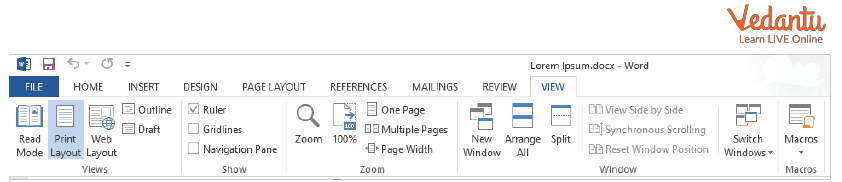
Definition and Meaning
Word Screen definition refers to the graphical user interface of Microsoft Word that allows users to create and manage documents. It provides access to tools required for typing, editing, formatting, saving, and printing documents.
- Word Processor - Software used to create text documents.
- Document Area - The main space where text is typed.
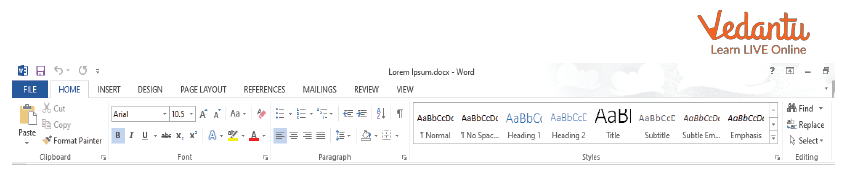
- Ribbon - A toolbar containing tabs and commands.
- Status Bar - Displays page number, word count, and other details.
How It Works / Working Principle
The Word Screen working is based on a graphical user interface that organizes commands into menus and toolbars. Users interact with the screen using a keyboard and mouse to perform document-related tasks.
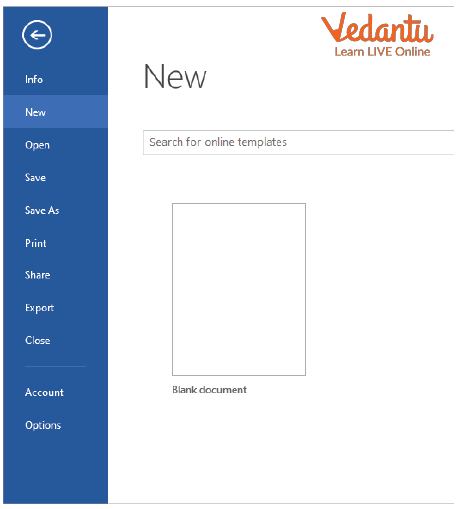
- When Microsoft Word is opened, the Word screen appears with a blank document.
- The user types text in the document area.
- Formatting tools from the Ribbon are used to change font, size, color, and alignment.
- Files are saved using the File tab.
- The status bar updates information like word count and page number automatically.
Types and Classification
The Word screen layout may vary slightly depending on the version of Microsoft Word.
- Classic Menu Interface - Used in older versions like Word 2003 with menu bar and toolbars.
- Ribbon Interface - Introduced in Word 2007 and later versions with tab-based commands.
- Web Version Interface - Simplified layout used in Word Online.
Components and Structure
The Word screen in computer science consists of several important components that work together.
- Title Bar - Displays the document name.
- Quick Access Toolbar - Contains frequently used commands like Save and Undo.
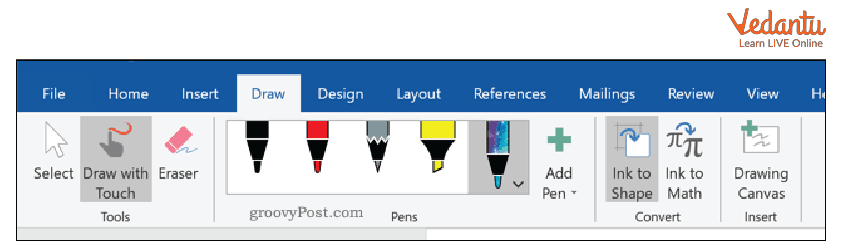
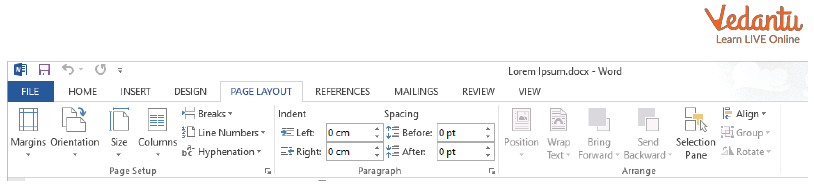
- Ribbon - Organizes tools into tabs such as Home, Insert, Design, and Layout.
- Document Area - Main workspace for typing.
- Scroll Bars - Used to move up, down, left, or right in a document.
- Status Bar - Shows document information.
- View Buttons - Switch between Read Mode, Print Layout, and Web Layout.
Features and Characteristics
- User friendly graphical interface.
- Tab based Ribbon system.
- Real time spell and grammar checking.
- Multiple document viewing support.
- Customizable toolbar and layout.
- Integration with cloud storage.
Advantages
- Easy document creation and editing.
- Provides professional formatting tools.
- Saves time using ready templates.
- Supports images, tables, and charts.
- Auto save and recovery features.
Disadvantages / Limitations
- Paid software in most versions.
- Large files may slow performance.
- Advanced features may be complex for beginners.
- Compatibility issues with very old versions.
Applications and Use Cases
- Creating school assignments and projects.
- Preparing business reports and letters.
- Designing resumes and cover letters.
- Writing research papers.
- Creating newsletters and brochures.
Quick Facts About Word Screen
| Category | Details | Example |
|---|---|---|
| Software Type | Word Processing Interface | Microsoft Word |
| First Ribbon Version | Word 2007 | Office 2007 |
| Used For | Document Creation | Letters, Reports |
| Platform Support | Windows, macOS, Web | Office 365 |
These quick facts highlight the importance and evolution of the Word screen in computer science education.
Interesting Facts About Word Screen
- The Ribbon interface replaced traditional menus in 2007.
- The status bar can be customized to show different statistics.
- Word supports multiple document windows at the same time.
- AutoCorrect automatically fixes common typing errors.
- Cloud integration allows real time collaboration.
- The Navigation Pane helps search headings quickly.
- Different view modes help in better document presentation.
Conclusion
The Word Screen in computer science is an essential concept for understanding how word processing software operates. It provides a structured interface that allows users to create, edit, and manage documents efficiently. Learning about the Word screen definition, components, features, and applications helps students build strong foundational computer skills. Mastery of the Word screen improves productivity and supports academic, professional, and personal document creation tasks.
FAQs on Word Screen in MS Word Explained for Beginners
1. What is a Word Screen in Microsoft Word?
The Word Screen is the main interface of Microsoft Word where users create, edit, format, and manage documents.
- Contains tools for text editing and formatting
- Displays menus, toolbars, and the document workspace
- Used in document creation, reports, assignments, and office work
2. What are the main components of the Word Screen?
The Word Screen components include various interface elements that help users perform document processing tasks efficiently.
- Title Bar
- Quick Access Toolbar
- Ribbon with tabs and groups
- Document Area
- Status Bar
3. What is the function of the Ribbon in the Word Screen?
The Ribbon is a command panel in the Word Screen that organizes tools and features into tabs for easy access.
- Contains tabs like Home, Insert, Layout, Review
- Groups related commands such as font, paragraph, and styles
- Improves productivity and user interface navigation
4. What is the purpose of the Quick Access Toolbar in Word?
The Quick Access Toolbar provides one-click access to frequently used commands in Microsoft Word.
- Usually includes Save, Undo, Redo
- Can be customized with additional commands
- Enhances workflow efficiency
5. What does the Status Bar show in the Word Screen?
The Status Bar displays real-time information about the current document in Microsoft Word.
- Page number and total pages
- Word count
- View options and zoom level
6. What is the Document Area in the Word Screen?
The Document Area is the main workspace where users type, edit, and format text in a Word document.
- Supports text, images, tables, and charts
- Allows formatting using fonts and styles
- Acts as the primary content editing region
7. How does the Word Screen help in document formatting?
The Word Screen provides built-in formatting tools that allow users to customize document appearance efficiently.
- Font style, size, and color options
- Paragraph alignment and spacing tools
- Styles and themes for consistent formatting
8. What are the different views available on the Word Screen?
The Word Screen offers multiple document views to help users edit and review content effectively.
- Print Layout View
- Read Mode
- Web Layout View
- Draft View
9. What are the advantages of understanding the Word Screen for exams and interviews?
Understanding the Word Screen is important for computer fundamentals exams, job interviews, and practical computer skills tests.
- Helps answer objective questions about MS Office
- Improves practical document editing skills
- Essential for office automation and basic IT knowledge
10. How is the Word Screen different from other word processing software interfaces?
The Word Screen in Microsoft Word features a Ribbon-based interface that differs slightly from other word processors like Google Docs or LibreOffice Writer.
- Uses a tabbed Ribbon interface
- Offers advanced formatting and layout tools
- Integrated with Microsoft Office ecosystem and cloud services