








What Are Paint Brush Menus and How They Work in Graphics Software
Paint is one of the most commonly used drawing applications in Windows, and understanding the Paint Brush Menus is essential for creating and editing images effectively. The menus in Paint provide users with options to open, save, edit, view, and modify pictures. In computer science education, learning about Paint menus helps students understand basic graphical user interface elements and how software applications are structured. By exploring the Paint Brush menus, users can perform drawing, formatting, and color editing tasks efficiently.
Definition and Meaning
Paint Brush Menus refer to the collection of menu options available in the Paint application that allow users to perform different tasks such as file management, editing, viewing, and image modification. These menus are part of the graphical user interface of the Paint program.
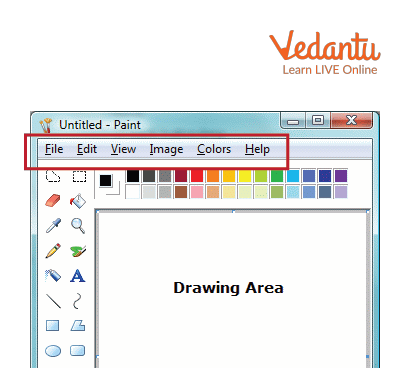
- Menu Bar - Displays different menu options like File, Edit, View, and Image.
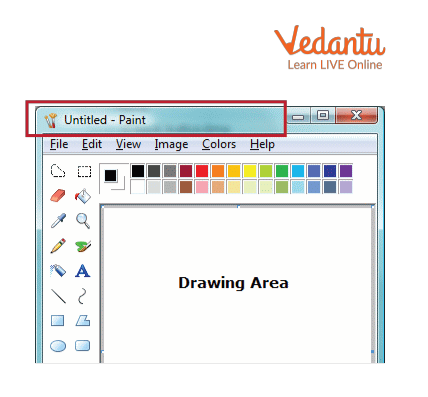
- Title Bar - Shows the name of the file and application.
- Drop-down Menu - Appears when a menu is clicked and shows related commands.
- Command - A specific action such as Save, Open, Copy, or Resize.
How It Works - Working Principle
The Paint Brush menus working is based on a simple graphical user interface system where users select commands from a menu bar to perform specific actions. Each menu contains related options grouped together for easy access.
- The user opens the Paint application.
- The Title Bar displays the file name and application name.
- The Menu Bar shows options such as File, Edit, View, and Image.
- When the user clicks a menu, a drop-down list appears.
- The selected command performs the required action, such as saving the file or editing the image.
Types and Classification
The Paint application contains different types of menus based on their functions. Each menu has specific commands grouped logically.
Types of Paint Brush Menus
| Menu Name | Main Function | Examples of Commands |
|---|---|---|
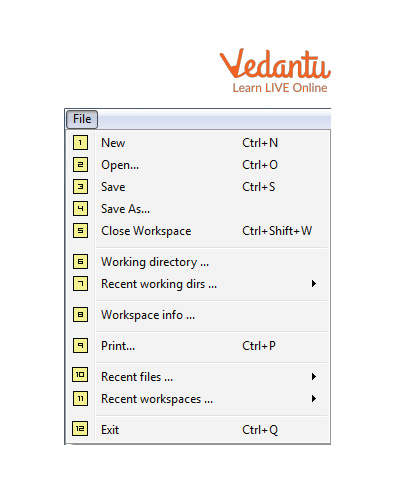
| File Menu | File management | New, Open, Save, Print |
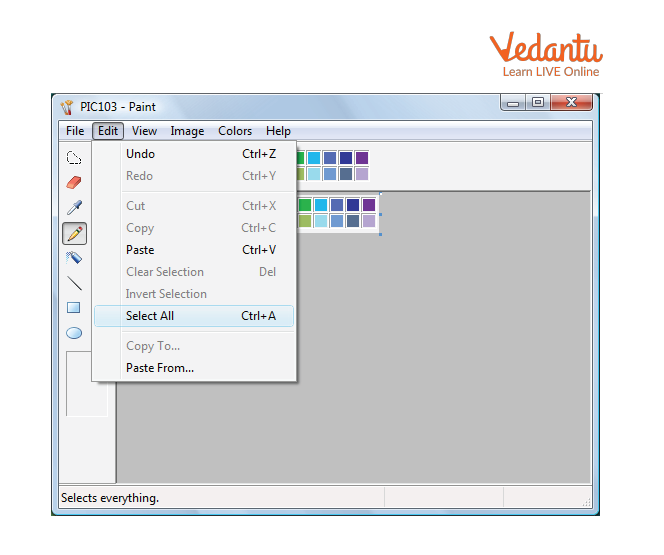
| Edit Menu | Editing operations | Undo, Cut, Copy, Paste |
| View Menu | Display settings | Zoom, Toolbars |
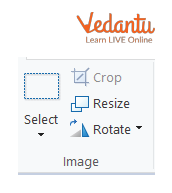
| Image Menu | Image modification | Resize, Flip, Rotate |
These menus help users organize their tasks efficiently while working on images.
Components and Structure
The structure of the Paint interface includes several important components that work together.
- Title Bar - Displays the current file name and control buttons.
- Menu Bar - Contains all main menus.
- File Menu
- Edit Menu
- View Menu
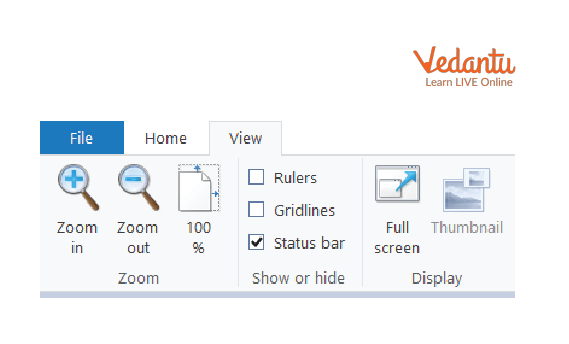
- Image Menu
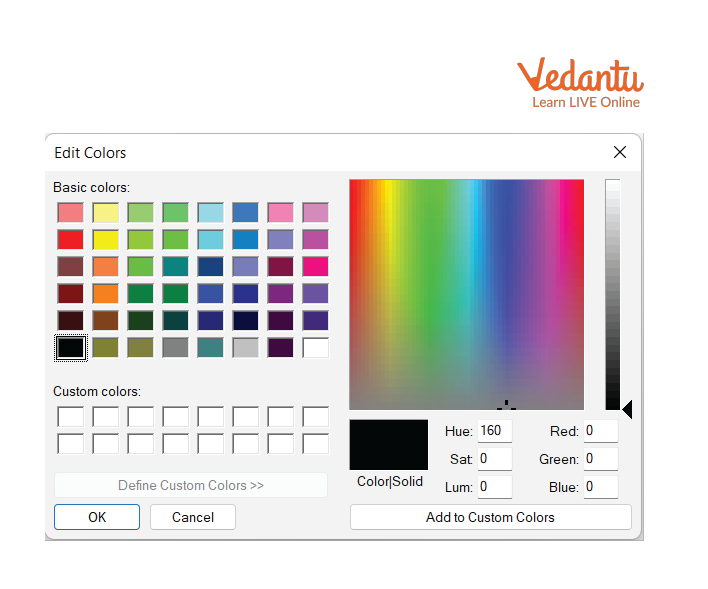
- Edit Colours Menu
Features and Characteristics
- User-friendly graphical interface.
- Grouped commands for easy navigation.
- Quick access to editing and formatting tools.
- Supports basic image customization.
- Simple drop-down structure for command selection.
Advantages
- Easy to learn for beginners.
- Organized layout improves productivity.
- Provides essential image editing tools.
- Lightweight and fast to use.
Disadvantages and Limitations
- Limited advanced editing features.
- Not suitable for professional graphic design.
- Basic tools compared to modern image editors.
Applications and Use Cases
- Drawing and coloring simple images.
- Creating basic diagrams and charts.
- Editing screenshots.
- Educational demonstrations in schools.
Quick Facts About Paint Brush Menus
| Category | Details |
|---|---|
| Type | Application Software Component |
| Platform | Windows Operating System |
| Used For | Image Editing and Drawing |
| Main Menus | File, Edit, View, Image |
These quick facts summarize the basic information related to Paint Brush menus in computer science.
Interesting Facts About Paint Brush Menus
- Paint was included in early versions of Microsoft Windows.
- The menu structure follows standard GUI design principles.
- The File menu allows images to be saved in multiple formats.
- Edit Colours lets users create custom color combinations.
- Menu commands can also be accessed using keyboard shortcuts.
- Paint is often used to teach basic computer skills in schools.
Conclusion
Understanding Paint Brush Menus in computer science helps students learn how graphical applications are organized and operated. The menus provide structured access to essential image editing commands such as file management, editing, and formatting. Although simple, Paint remains an important educational tool for introducing basic computer operations and graphical user interfaces. Mastering these menus builds foundational skills for working with more advanced software applications in the future.
FAQs on Paint Brush Menus Explained for GUI and Graphics Applications
1. What are Paint Brush Menus in computer applications?
Paint Brush Menus are graphical user interface (GUI) menu options in drawing or image editing software that allow users to select and customize brush tools for digital painting and editing.
- Found in software like MS Paint, Adobe Photoshop, and GIMP
- Provide access to brush size, shape, color, and style settings
- Used in graphic design, image processing, and digital art applications
2. How do Paint Brush Menus work in graphics software?
Paint Brush Menus work by allowing users to select brush properties that control how pixels are applied to a digital canvas using input devices like a mouse or stylus.
- Modify parameters such as brush size, opacity, and hardness
- Interact with the software’s graphics rendering engine
- Update pixel data in real time within the image buffer
3. What are the main components of a Paint Brush Menu?
The main components of a Paint Brush Menu include tool selection options and adjustable brush properties that control drawing behavior.
- Brush selector for choosing brush types
- Size and thickness controls
- Color palette integration
- Advanced settings like opacity and flow in professional tools
4. What are the different types of brush tools available in Paint Brush Menus?
Paint Brush Menus offer different brush types that simulate real-world drawing tools in digital form.
- Basic round brush for simple drawing
- Calligraphy or angled brushes
- Airbrush tool for spray effects
- Pattern or texture brushes in advanced software
5. What is the importance of Paint Brush Menus in graphic design and image editing?
Paint Brush Menus are important because they provide precise control over digital drawing and image manipulation in graphic design and multimedia applications.
- Enable detailed artwork creation
- Support photo retouching and corrections
- Used in web design, animation, and UI/UX prototyping
6. How are Paint Brush Menus different from other drawing tools like the Pencil tool?
Paint Brush tools create smoother and more customizable strokes compared to Pencil tools, which produce sharper and pixel-accurate lines.
- Brush tool supports soft edges and blending
- Pencil tool draws hard-edged pixels
- Brush menus provide more adjustable parameters
7. What are the advantages and disadvantages of using Paint Brush Menus?
Paint Brush Menus offer flexibility in digital drawing but may require practice to use efficiently.
- Advantages: Customization, realistic effects, professional design support
- Disadvantages: Can be complex for beginners, higher system resource usage in advanced tools
8. How do Paint Brush Menus interact with hardware devices?
Paint Brush Menus interact with input hardware like a mouse, touchpad, or graphics tablet to convert user movements into digital strokes.
- Use device drivers to detect input
- Support pressure sensitivity with stylus devices
- Communicate with the operating system and graphics API
9. Are Paint Brush Menus important for exam and interview preparation in Computer Science?
Yes, Paint Brush Menus are relevant for understanding graphical user interfaces, multimedia systems, and basic computer applications in exams and interviews.
- Common topic in school-level Computer Science practical exams
- Related to GUI design and image processing concepts
- Helps in understanding event-driven programming basics
10. Which software applications commonly use advanced Paint Brush Menus?
Advanced Paint Brush Menus are widely used in professional graphics and digital art software applications.
- Adobe Photoshop for professional image editing
- GIMP as an open-source graphics editor
- Corel Painter for digital illustration
- Microsoft Paint for basic drawing tasks