








How to view downloads in Chrome Windows and mobile devices
The View Downloads feature allows users to see, manage, and access files that have been downloaded from the internet or transferred to a computer. In computer science, this functionality is an important part of operating systems and web browsers, as it helps users track downloaded documents, images, software, and media files. Understanding how to view downloads improves file management skills, enhances productivity, and ensures better control over data stored on a device.
Definition and Meaning
View Downloads refers to the process of accessing and managing files that have been downloaded to a computer or device using a browser or other application.
- Download - The process of transferring data from the internet to a local device.
- Downloads Folder - A default directory where downloaded files are stored.
- Download History - A list maintained by browsers showing recently downloaded files.
- File Explorer - A system tool used to navigate and manage files.
How It Works - Working Principle
The View Downloads working process involves storing downloaded files in a specific location and displaying them through a browser or file management system.
- A user clicks a download link on a website.
- The browser requests the file from the web server.
- The file is transferred and saved to the device, usually in the Downloads folder.
- The browser records the file in its download history.
- The user can open, delete, or locate the file using the View Downloads option.
Downloads can be viewed either through the browser interface or through the operating system’s file manager.
Types and Classification
There are mainly two ways to view downloads on a computer.
- Browser Based View - Accessing downloads directly from web browsers like Chrome, Edge, or Firefox.
- Operating System Based View - Accessing downloads through File Explorer in Windows or Finder in macOS.
Viewing Downloads in File Explorer
In Windows, downloaded files are usually stored in the Downloads folder. Users can access them using File Explorer.
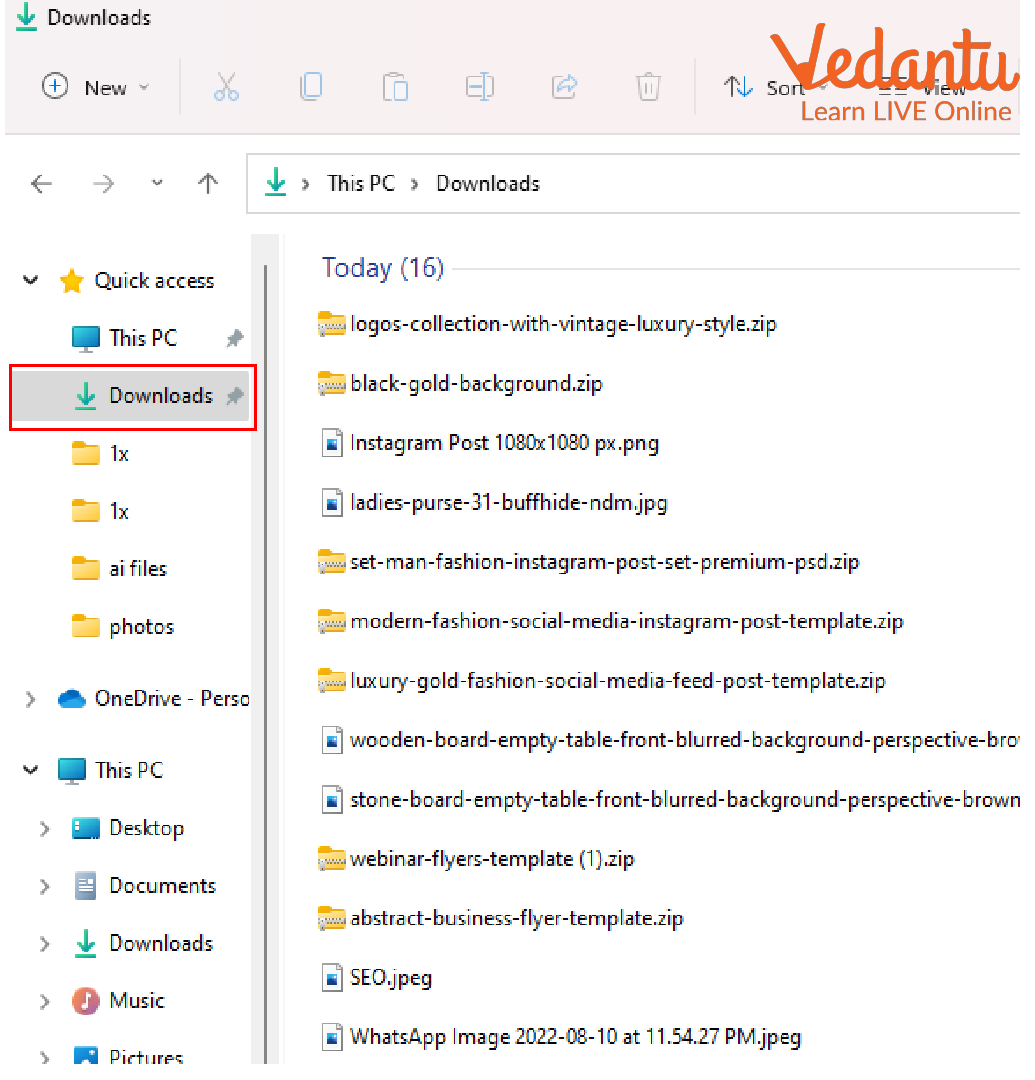
- Open File Explorer.
- Click on the Downloads folder in the left sidebar.
- View, sort, open, rename, or delete downloaded files.
Viewing Downloads in Google Chrome
Web browsers maintain a download history to allow users to quickly access recent files.
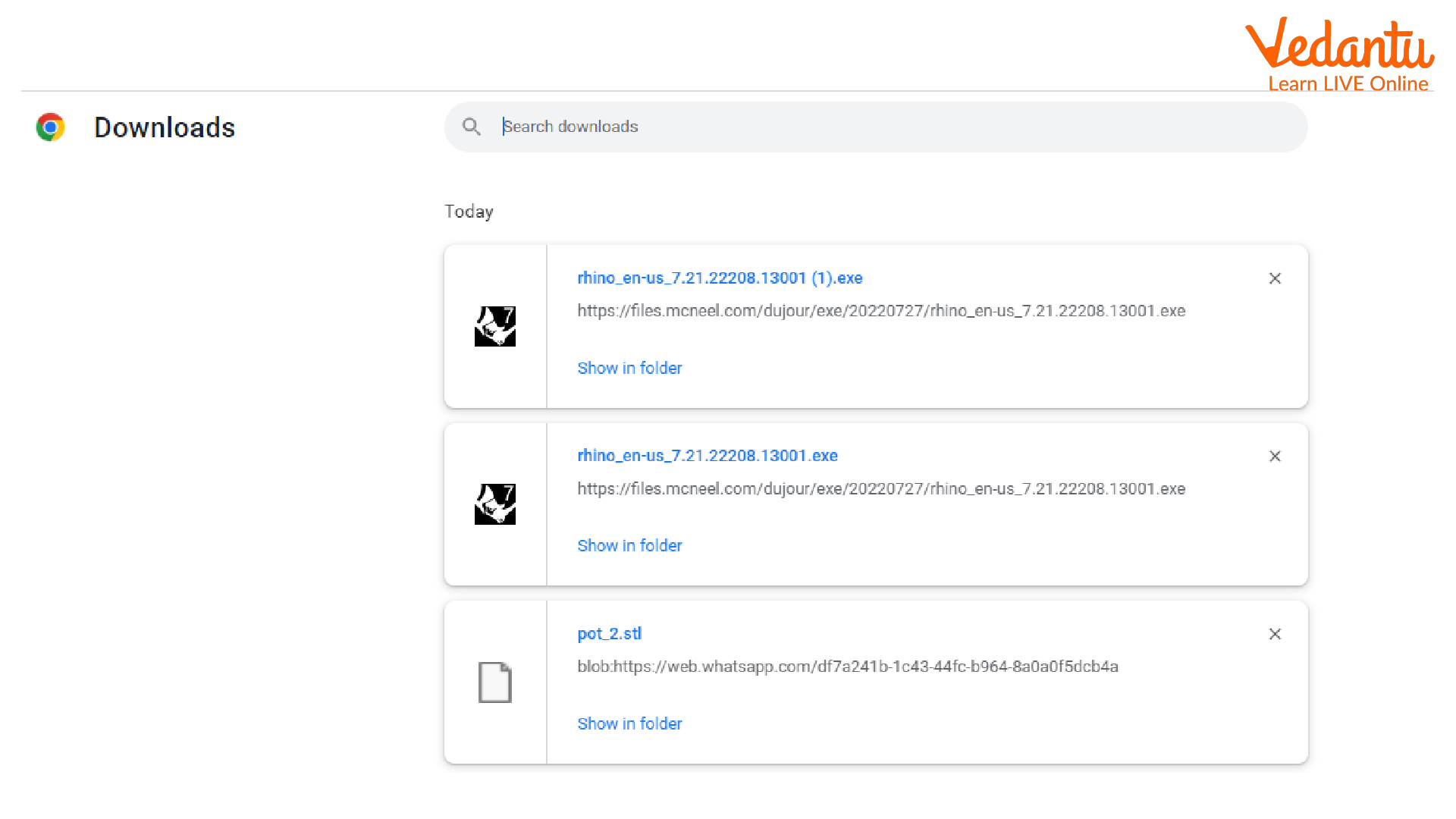
- Open Google Chrome.
- Click on the three-dot menu.
- Select Downloads or press Ctrl + J.
- View the list of recently downloaded files.
Features and Characteristics
- Displays recently downloaded files in chronological order.
- Allows file sorting by name, date, or size.
- Provides options to open, delete, or show file location.
- Shows download progress and status.
- Supports multiple file types such as PDF, images, videos, and software files.
Advantages
- Easy access to downloaded files.
- Improves file organization and management.
- Saves time by maintaining download history.
- Helps track incomplete or failed downloads.
Disadvantages / Limitations
- Downloaded files may consume storage space.
- Risk of downloading malicious or unsafe files.
- Cluttered Downloads folder if not managed properly.
- Deleted browser history may remove download records.
Applications and Use Cases
- Accessing study materials and e-books.
- Installing software and applications.
- Downloading images, audio, and video files.
- Managing project documents in offices.
- Tracking large file transfers in professional environments.
Quick Facts About View Downloads
| Category | Details |
|---|---|
| Type | Operating System and Browser Feature |
| Used For | Accessing and Managing Downloaded Files |
| Default Location | Downloads Folder |
| Common Shortcut | Ctrl + J in Browsers |
| Supported Platforms | Windows, macOS, Linux, Browsers |
The Quick Facts table highlights the essential information about the View Downloads feature in computer systems and browsers.
Interesting Facts About View Downloads
- Most browsers automatically save files to the Downloads folder by default.
- Users can change the default download location in browser settings.
- Download managers provide advanced control over file downloads.
- Incomplete downloads can usually be resumed.
- Browsers display warnings for potentially harmful files.
- The Downloads folder is one of the most frequently accessed system directories.
Conclusion
The View Downloads feature is an essential part of modern operating systems and web browsers. It helps users efficiently manage, access, and organize downloaded files. Understanding the View Downloads definition, working process, features, and applications enables better digital file management and enhances overall computer literacy. Proper use of this feature ensures safe, organized, and productive use of downloaded content in daily computing tasks.
FAQs on View Downloads and Manage Files Easily
1. What is the meaning of View Downloads in a computer or web browser?
View Downloads is a feature in web browsers and operating systems that allows users to see, manage, and access files they have downloaded from the internet.
- Shows list of downloaded files
- Displays file name, size, and download status
- Allows opening, deleting, or locating files
2. How does the View Downloads feature work in a web browser?
The View Downloads feature tracks files downloaded through the browser and stores their details in a download history list.
- Browser saves file metadata such as name and location
- Displays progress bar during download
- Stores history until cleared manually
3. Where can I find the View Downloads option in popular browsers?
In most modern browsers like Google Chrome, Mozilla Firefox, and Microsoft Edge, the View Downloads option is available in the menu or via shortcut keys.
- Chrome: Press Ctrl + J
- Firefox: Press Ctrl + J
- Edge: Press Ctrl + J
4. What information is shown in the View Downloads section?
The View Downloads section displays detailed information about downloaded files for better file management.
- File name and file type
- Download date and time
- File size and status
- Storage location in the operating system
5. How can I manage files using the View Downloads feature?
The View Downloads feature allows users to manage downloaded files directly from the browser interface.
- Open the downloaded file
- Show file in folder
- Delete from download history
- Retry failed downloads
6. What is the difference between View Downloads and Download History?
While often used interchangeably, View Downloads typically shows active and recent downloads, whereas Download History refers to the stored record of all past downloads.
- View Downloads: Real-time and recent activity
- Download History: Complete saved record
- Both are part of browser data management
7. Why is the View Downloads feature important for cybersecurity?
The View Downloads feature helps users monitor downloaded files and identify potentially harmful or suspicious software.
- Detect unknown or malicious files
- Verify file source before opening
- Delete unsafe downloads to prevent malware attacks
8. Can I clear or delete my View Downloads history?
Yes, users can clear the View Downloads list to remove stored download records from the browser.
- Delete individual files from the list
- Clear entire download history
- Does not always delete the actual file from the system
9. How is View Downloads useful for students and exam preparation?
The View Downloads feature is useful for students to organize study materials, software tools, and project files downloaded from educational platforms.
- Track downloaded PDFs and notes
- Access programming software and IDE installers
- Manage project datasets and assignments
10. What are the advantages and limitations of the View Downloads feature?
The View Downloads feature improves file management but has certain limitations depending on browser settings and storage policies.
- Advantages: Easy access, better organization, quick file tracking
- Limitations: History can be cleared, may not show files downloaded outside the browser
- Depends on browser and operating system integration