








How to create a new worksheet in Excel using menu and shortcut keys
Creating a New Worksheet is one of the basic and most important tasks in Microsoft Excel. A worksheet is a grid of rows and columns used to store, organise, and analyse data. Understanding how to create a new worksheet in computer science helps students manage data efficiently for calculations, charts, and reports. Whether you are preparing school assignments, financial records, or project data, knowing the correct steps to open, create, save, and reopen worksheets is essential for effective spreadsheet management.
Definition and Meaning
Creating a New Worksheet refers to the process of adding a fresh spreadsheet page within a workbook in Microsoft Excel. It allows users to enter new data separately without affecting existing sheets.
- Workbook - An Excel file that can contain one or more worksheets.
- Worksheet - A single spreadsheet page made up of rows and columns.
- Cell - The intersection of a row and a column where data is entered.
- File - The saved workbook stored on a computer.
How It Works - Working Principle
The Creating New Worksheet working process in Microsoft Excel involves launching the software, opening a new workbook, adding worksheets if required, and saving the file. Each worksheet functions independently within a workbook but can share data through formulas and references.
- Click the Start icon to open programs.

- Select Microsoft Excel from the program list.

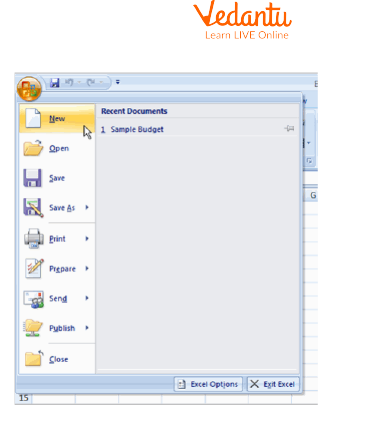
- Click on File and then choose New to create a workbook.
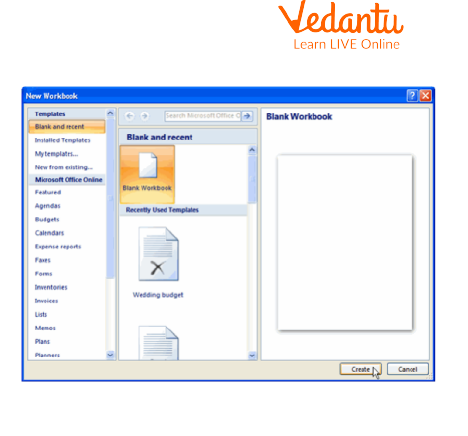
- Select Blank Workbook to open a new workbook.
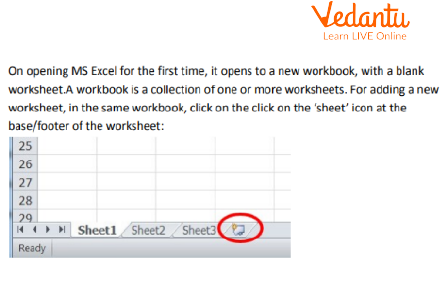
- To add another worksheet, click the New Sheet tab at the bottom of the workbook.
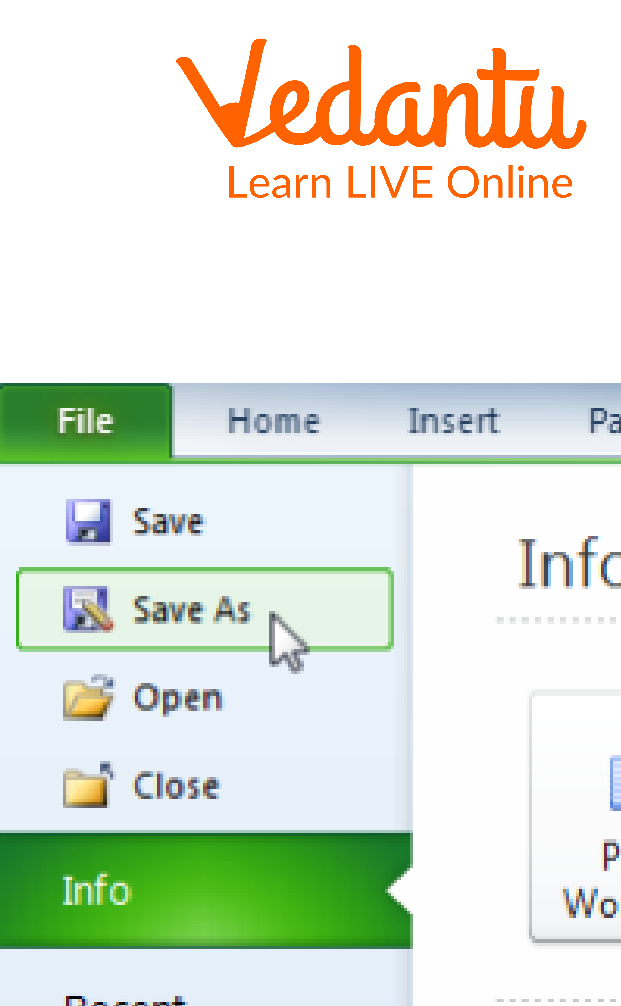
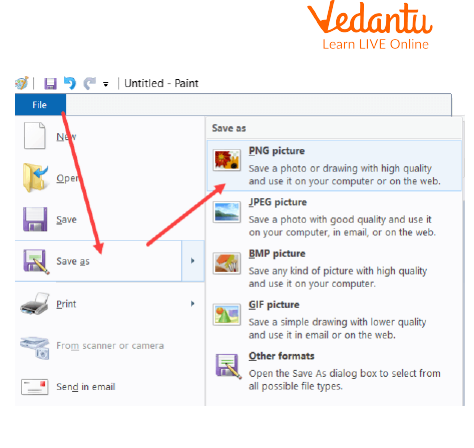
- To save the worksheet, click File and then Save As.
- Choose the location where you want to save the file.
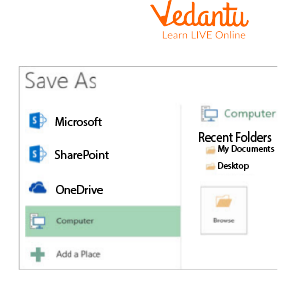
- Type the file name in the File Name box.
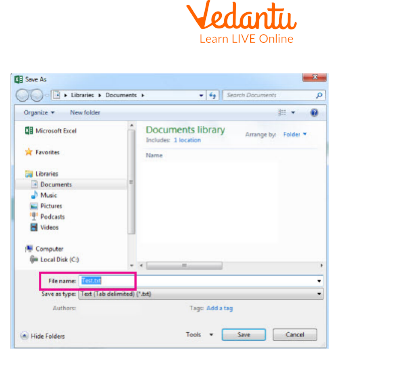
- Click the Save button to store the file.
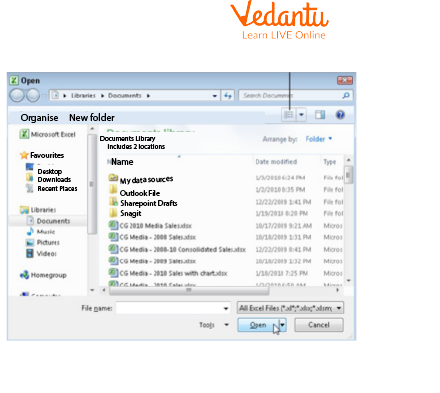
- To open a saved file, click File and then Open.
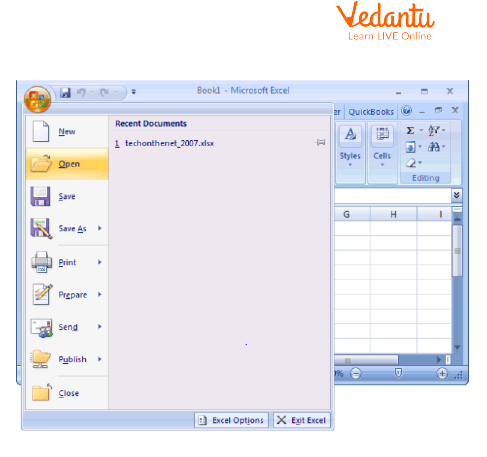
- Select the saved file location and click Open.
Types and Classification
In Excel, worksheets can be classified based on their purpose and structure.
- Blank Worksheet - A new empty sheet used to enter fresh data.
- Template Based Worksheet - Pre-designed sheet with formatting and formulas.
- Chart Sheet - A worksheet dedicated only to displaying charts.
- Data Worksheet - Used mainly for storing numerical or textual data.
Features and Characteristics
- Contains rows numbered and columns labeled alphabetically.
- Supports formulas and built in functions.
- Allows multiple worksheets within one workbook.
- Provides formatting, sorting, and filtering tools.
- Easy saving and reopening options.
Advantages
- Organises data systematically.
- Simplifies calculations using formulas.
- Allows separate sheets for different tasks.
- Supports data analysis and chart creation.
- Improves productivity in academic and office work.
Disadvantages / Limitations
- Large worksheets may slow down performance.
- Incorrect formulas can produce wrong results.
- Requires basic knowledge to use effectively.
- Data may be lost if not saved properly.
Applications and Use Cases
- Maintaining student records and marksheets.
- Budget preparation and financial planning.
- Inventory and stock management.
- Project data analysis.
- Creating charts and reports.
Quick Facts About Creating a New Worksheet
| Category | Details |
|---|---|
| Software | Microsoft Excel |
| File Extension | .xlsx |
| Used For | Data entry, calculation, analysis |
| Platform Support | Windows, macOS, Online |
| Common Uses | Reports, budgets, records |
These quick facts highlight the importance of Creating New Worksheet in computer science and daily data management tasks.
Interesting Facts About Creating a New Worksheet
- A workbook can contain multiple worksheets for better organisation.
- Each worksheet can hold millions of cells in modern Excel versions.
- Worksheets can be renamed, copied, or deleted easily.
- Shortcut Shift + F11 quickly inserts a new worksheet.
- Data from different worksheets can be linked using formulas.
- Worksheets support conditional formatting for better analysis.
Conclusion
Creating a New Worksheet is a fundamental skill in Microsoft Excel and an essential topic in computer science education. It enables users to organise data, perform calculations, and manage multiple datasets efficiently. By understanding the correct steps to create, save, and open worksheets, students and professionals can work more accurately and productively. Mastering this concept builds a strong foundation for advanced spreadsheet operations and data analysis tasks.
FAQs on Creating New Worksheet in Excel Step by Step Tutorial
1. What is meant by creating a new worksheet in spreadsheet software?
Creating a new worksheet means adding a new spreadsheet tab within a workbook to organize and store data separately.
- A worksheet is part of a workbook in tools like Microsoft Excel or Google Sheets
- It contains rows, columns, and cells for data entry
- Used to manage multiple datasets in one file
2. How do you create a new worksheet in Microsoft Excel?
You can create a new worksheet in Microsoft Excel by using the plus (+) icon or keyboard shortcut.
- Click the + icon next to sheet tabs
- Use shortcut Shift + F11
- Right-click an existing sheet and select Insert → Worksheet
3. Why is creating a new worksheet important in data management?
Creating a new worksheet helps organize data efficiently and improves data management in spreadsheet applications.
- Separates different datasets logically
- Improves readability and analysis
- Supports better data processing and reporting
4. What are the components of a worksheet?
A worksheet consists of structured elements that allow users to store and manipulate data.
- Rows identified by numbers
- Columns identified by letters
- Cells formed by row and column intersection
- Formula bar for calculations and functions
5. Can you create a new worksheet using programming?
Yes, a new worksheet can be created programmatically using automation tools and programming languages.
- In Python, libraries like openpyxl or pandas can create worksheets
- In VBA (Visual Basic for Applications), use code like Worksheets.Add
- Used in data automation and reporting systems
6. What is the difference between a workbook and a worksheet?
A workbook is a file that contains multiple worksheets, while a worksheet is a single spreadsheet page inside it.
- Workbook stores overall file data
- Worksheet stores specific datasets
- Example: Excel file (.xlsx) is a workbook
7. How many worksheets can be created in a workbook?
The number of worksheets in a workbook depends on system memory and software limits.
- In Microsoft Excel, limited by available RAM
- Users can manually add multiple sheets
- Excess sheets may reduce performance
8. What are the advantages of using multiple worksheets?
Using multiple worksheets improves organization, analysis, and data security in spreadsheet applications.
- Better data segregation
- Easier formula referencing across sheets
- Supports modular report creation
9. How can worksheets be renamed or managed after creation?
After creating a new worksheet, it can be renamed and managed for better organization.
- Double-click the sheet tab to rename
- Right-click for options like Delete, Move, or Copy
- Useful for structured data organization
10. Is creating a new worksheet important for exams and interviews?
Yes, understanding how to create a new worksheet is important for computer fundamentals exams and basic IT interviews.
- Common topic in school and competitive exams
- Tests knowledge of spreadsheet software
- Important for roles involving data entry and reporting