








How to Change Font Style and Size in MS Word and HTML
In computer applications, formatting text is an essential skill that improves the readability and presentation of documents. One of the most basic formatting tasks is to apply font and font size to text. Whether you are creating a school project, writing a report, or designing a presentation, choosing the right font style and size helps convey information clearly and professionally. Understanding how to apply font and font size in computer science enhances document design skills and ensures content looks organised and visually appealing.
Definition and Meaning
Apply Font and Font Size refers to the process of changing the appearance of text in a document by selecting a specific font style and adjusting its size.
- Font - The design or style of text characters, such as Arial, Times New Roman, or Calibri.
- Font Size - The height of the text, usually measured in points (pt).
- Formatting - The process of changing the appearance of text to make it clear and attractive.
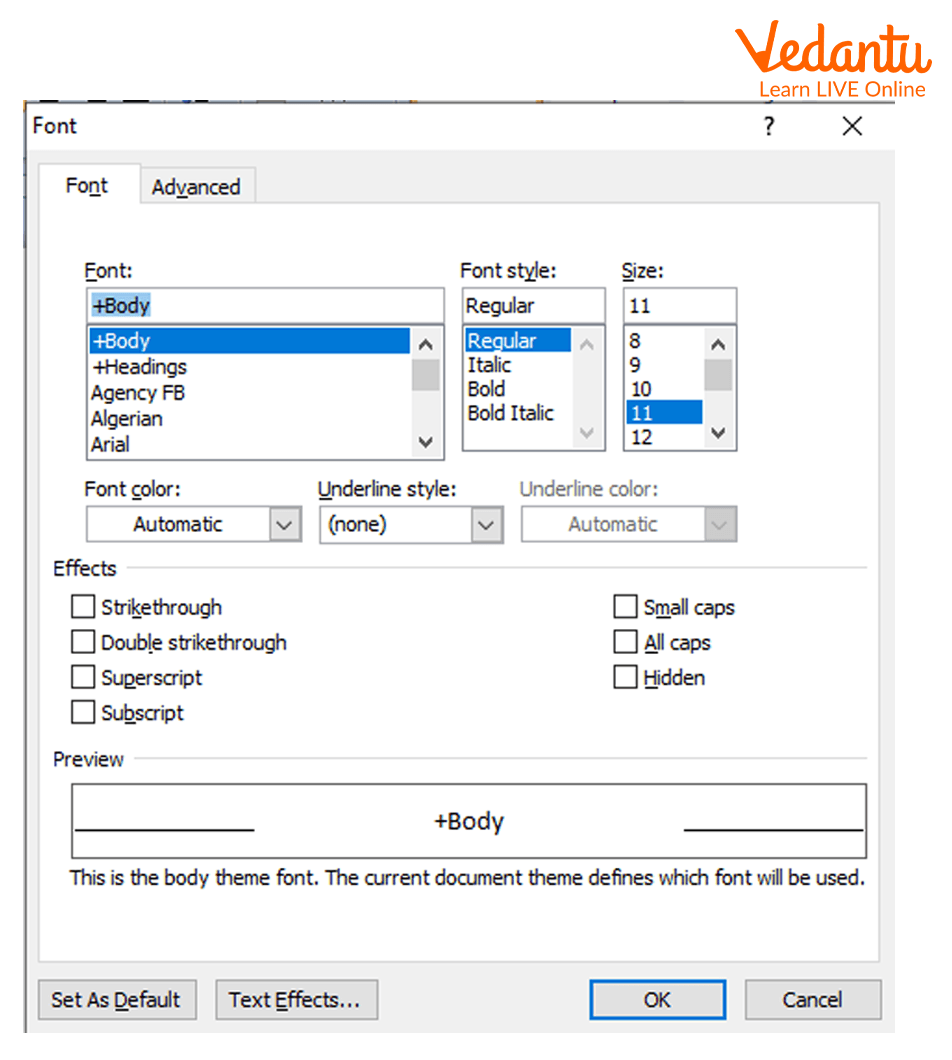
- Font Dialog Box - A window that allows users to customize font settings.
How It Works / Working Principle
The Apply Font and Font Size working process is simple and is commonly used in word processing software like MS Word, Google Docs, and other text editors.
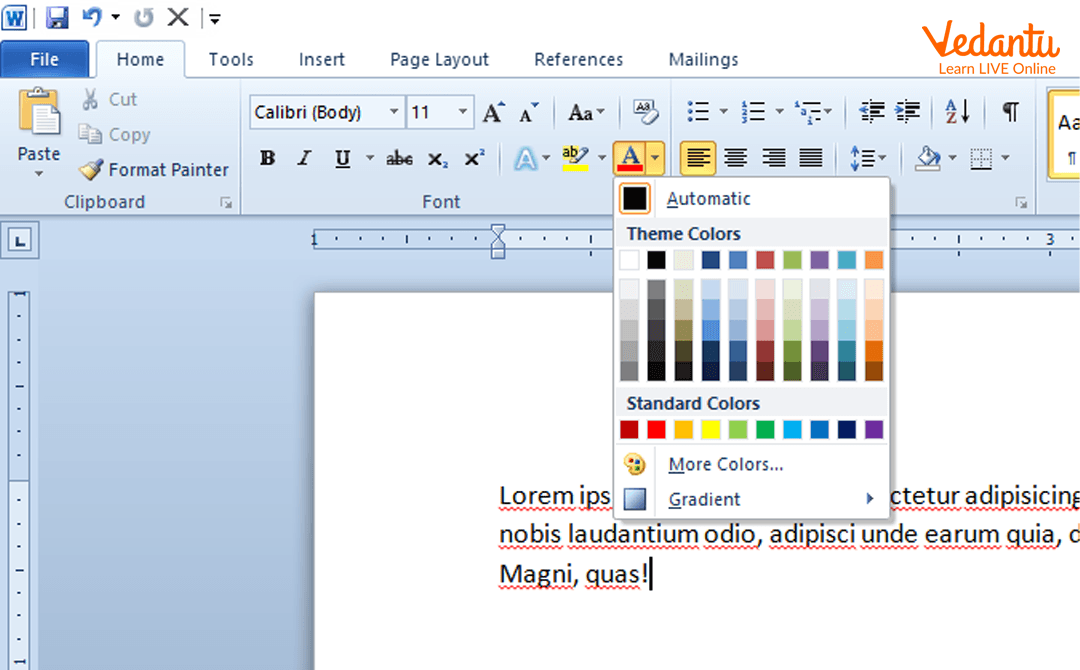
- Select the text that you want to modify.
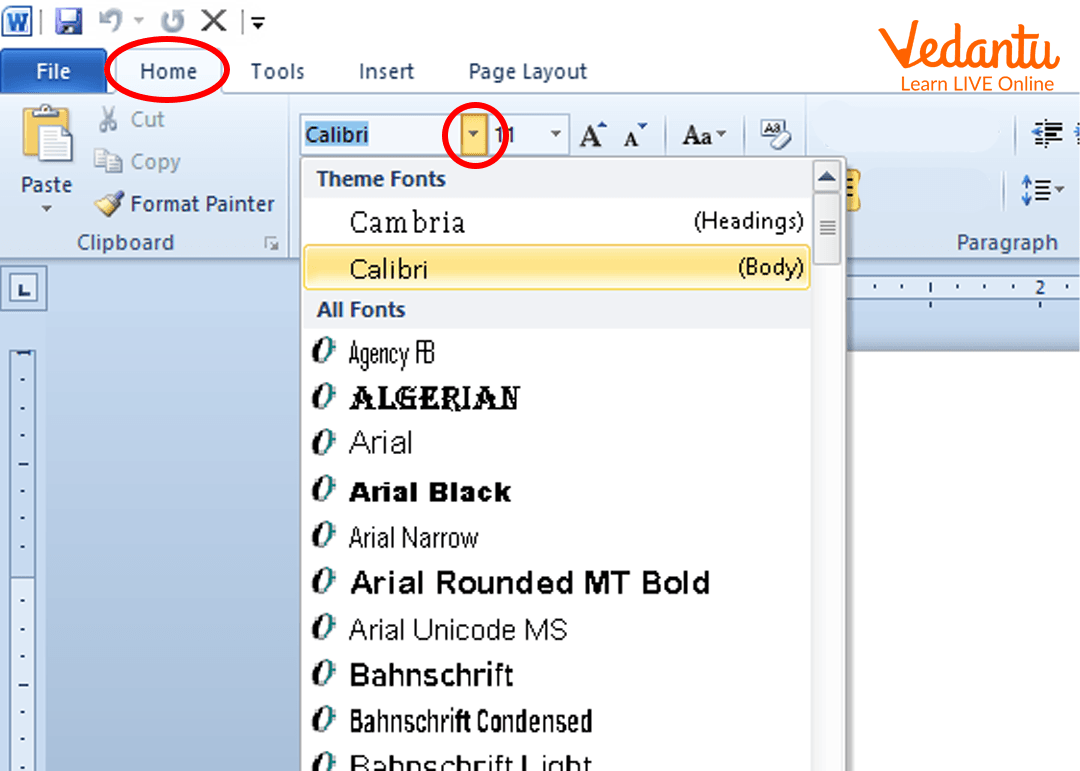
- Click on the Font Type icon from the toolbar.
- Choose the desired font style from the drop down list.
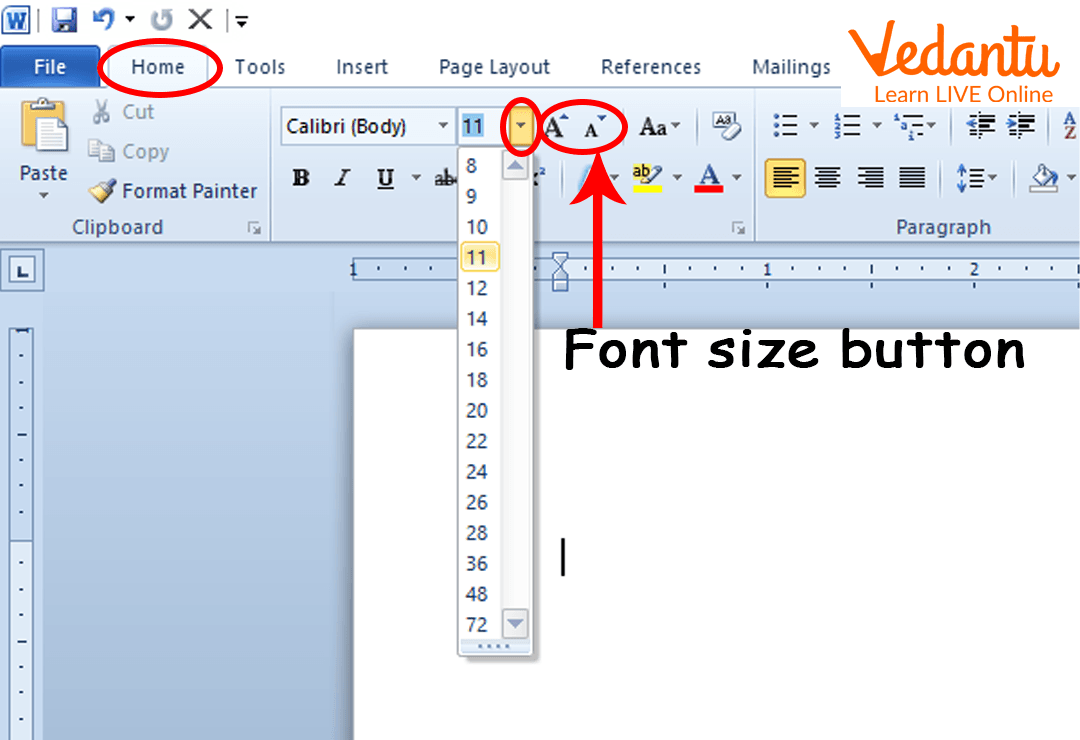
- Click on the Font Size icon and select the appropriate size.
- The selected text instantly changes according to the chosen settings.
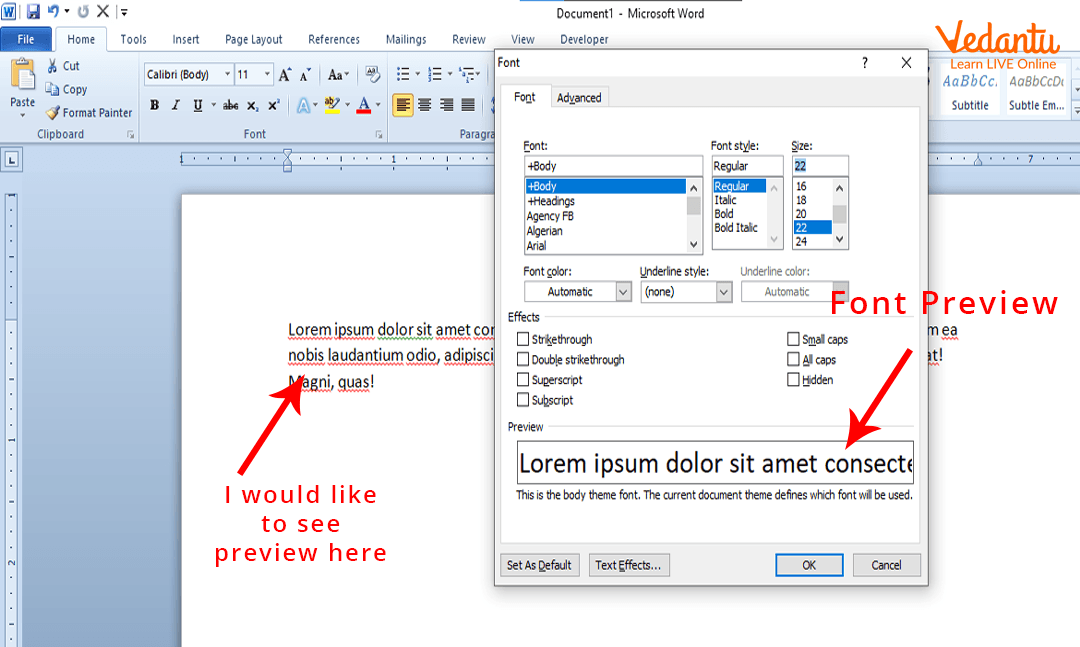
Alternatively, users can open the Font Dialog Box to apply advanced formatting options and preview changes before applying them.
Types and Classification
Fonts are classified into different types based on their design and usage.
- Serif Fonts - Have small lines at the ends of characters. Example: Times New Roman.
- Sans Serif Fonts - Do not have decorative lines. Example: Arial, Calibri.
- Monospace Fonts - Each character has equal width. Example: Courier New.
- Decorative Fonts - Used for artistic purposes. Example: Comic Sans.
Font sizes commonly range from 8 pt to 72 pt depending on the purpose of the document.
Features and Characteristics
- Easy modification of text appearance.
- Wide variety of font styles available.
- Flexible font size adjustment.
- Preview option before applying changes.
- Can be combined with bold, italic, underline, and color formatting.
Advantages
- Improves document readability.
- Enhances visual appeal.
- Helps highlight important information.
- Makes documents look professional.
Disadvantages / Limitations
- Using too many fonts can make a document look messy.
- Very small or very large font sizes reduce readability.
- Some fonts may not be supported on all systems.
Applications and Use Cases
- Preparing school assignments and reports.
- Designing business documents and letters.
- Creating presentations and posters.
- Developing websites and digital content.
- Formatting resumes and official documents.
Quick Facts About Apply Font And Font Size
| Aspect | Details |
|---|---|
| Category | Text Formatting Feature |
| Measured In | Points (pt) |
| Common Software | MS Word, Google Docs, WordPad |
| Used For | Changing Text Style and Size |
| Common Uses | Documents, Reports, Presentations |
The table above highlights the basic information related to applying font and font size in computer applications.
Interesting Facts About Apply Font And Font Size
- Font size is measured in points, where 72 points equal 1 inch.
- Serif fonts are often preferred for printed documents.
- Sans serif fonts are widely used for digital screens.
- Preview options allow users to see changes before applying them.
- Different operating systems may display fonts slightly differently.
- Professional documents usually use only one or two font styles.
Conclusion
Understanding how to apply font and font size is a fundamental skill in computer science and digital documentation. It helps improve the clarity, structure, and appearance of written content. By selecting appropriate fonts and sizes, users can create professional and easy to read documents. Mastering this simple yet important formatting feature enhances overall computer proficiency and supports effective communication in academic and professional environments.
FAQs on Applying Font and Font Size in Computer Applications
1. What does Apply Font and Font Size mean in Computer applications?
Applying Font and Font Size means changing the text style and text size in a document, webpage, or software interface to improve readability and presentation.
- Font defines the design or style of text such as Arial, Times New Roman, or Calibri.
- Font Size defines the height of characters, usually measured in points (pt) in word processors.
- Commonly used in word processing, web development, and UI design.
2. How do you apply font and font size in MS Word?
In MS Word, font and font size are applied using the Font group in the Home tab to format selected text.
- Select the text you want to format.
- Choose a Font from the font drop-down list.
- Select the required Font Size from the size box.
- Keyboard shortcuts: Ctrl + Shift + > to increase and Ctrl + Shift + < to decrease font size.
3. What is the syntax to apply font and font size in HTML?
In HTML and CSS, font and font size are applied using CSS properties such as font-family and font-size.
- Example: <p style="font-family: Arial; font-size: 16px;">Text</p>
- font-family defines the typeface.
- font-size can be set in px, em, rem, or %.
4. What are the different units used for font size in web development?
Font size in web development can be defined using different CSS units to control responsiveness and layout.
- px (pixels) for fixed size.
- em and rem for relative sizing.
- % (percentage) relative to parent element.
- pt (points) mostly used in print styling.
5. Why is choosing the correct font and font size important in software and web design?
Choosing the correct font and font size improves readability, accessibility, and user experience in software applications and websites.
- Enhances UI/UX design.
- Improves accessibility for visually impaired users.
- Maintains consistency in documentation and reports.
- Supports branding and professional presentation.
6. What is the difference between font style and font size?
Font style refers to the appearance of text, while font size defines how large or small the text appears on screen or paper.
- Font Style: Bold, Italic, Underline, Regular.
- Font Type: Arial, Verdana, Times New Roman.
- Font Size: Measured in pt, px, em, etc.
7. How do programming languages apply font and font size in GUI applications?
In GUI programming, fonts are applied using built-in libraries or frameworks to control text appearance in applications.
- In Java (Swing): setFont(new Font("Arial", Font.PLAIN, 14));
- In Python (Tkinter): font=("Arial", 14)
- Used in desktop software, forms, and dialog boxes.
8. What are the advantages of applying appropriate font and font size?
Applying appropriate font and font size ensures better communication and professional document formatting.
- Improves readability and clarity.
- Enhances document structure.
- Supports accessibility standards in web development.
- Makes content suitable for exam submissions and reports.
9. Are there any disadvantages of using too many fonts and sizes in a document?
Using too many fonts and font sizes can reduce readability and make documents look unprofessional.
- Creates inconsistent formatting.
- Confuses readers.
- Increases design complexity in UI development.
- May affect accessibility and responsiveness.
10. How is applying font and font size relevant for exams and interviews?
Understanding how to apply font and font size is important for practical exams, computer proficiency tests, and technical interviews.
- Common task in MS Office practical exams.
- Basic requirement in web design and front-end development interviews.
- Tests knowledge of document formatting and CSS syntax.